How to export your products to CSV
Download your whole catalogue as a CSV (every product's name, SKU, price, stock and status) for back-ups, stocktake or handing off to your accountant.
Sometimes you need your catalogue outside Crate, to take a back-up before a big change, run a stocktake on paper, or hand your product list to an accountant or supplier. Exporting to CSV gives you a clean spreadsheet of everything you sell in a couple of clicks.
What's in the file
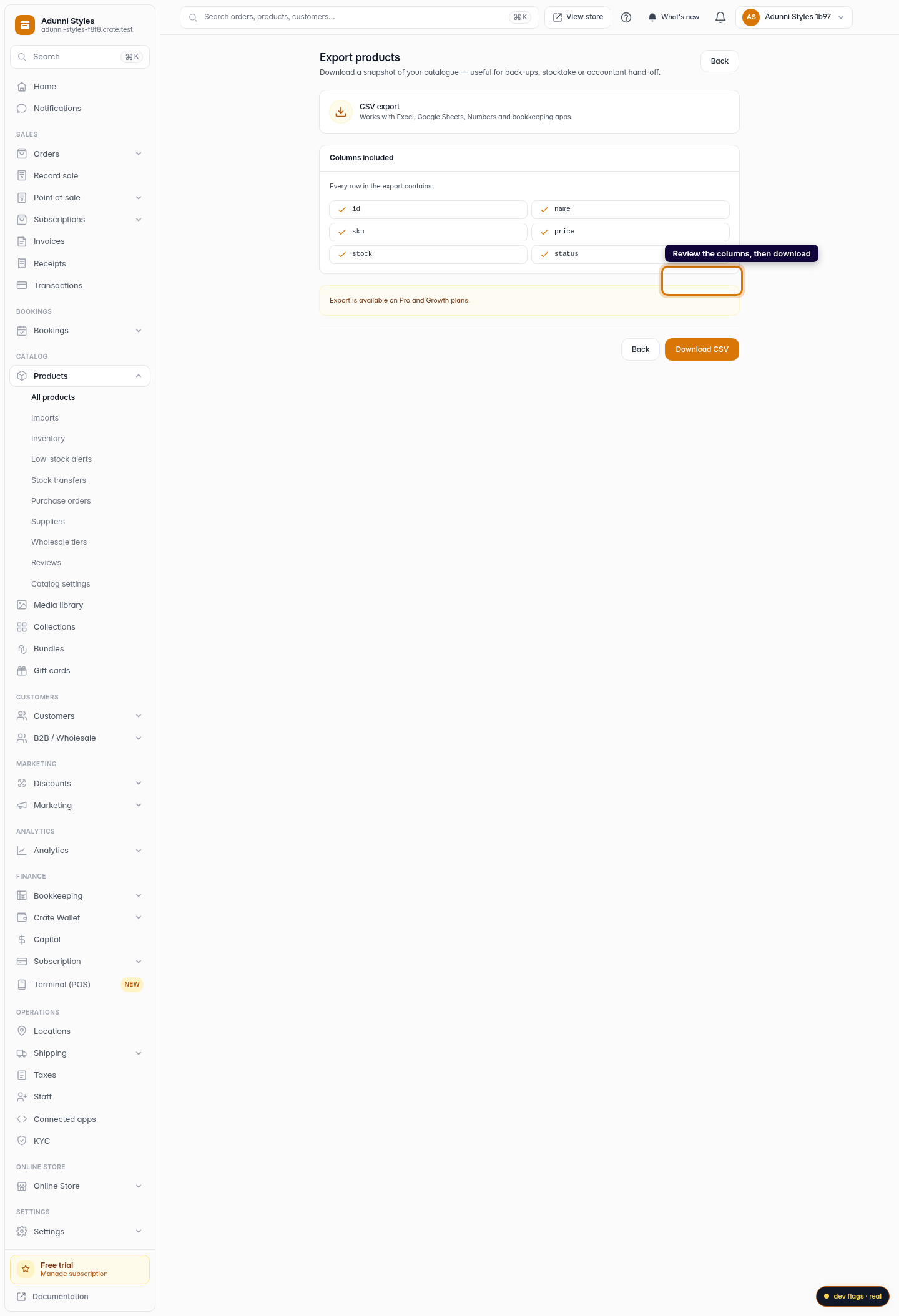
Every row in the export is one product, with these columns:
- id: Crate's internal identifier for the product
- name: the product name buyers see
- sku: your stock-keeping code
- price: the product's price in your store currency
- stock: units currently on hand
- status: Active, Draft or Archived
The file is a standard CSV, so it opens directly in Excel, Google Sheets, Numbers, or any accounting tool that imports spreadsheets.
Tip: Exporting is a read-only snapshot; it never changes your live catalogue. Export as often as you like before a bulk edit, a price change, or your month-end books.
-
1
Open Products
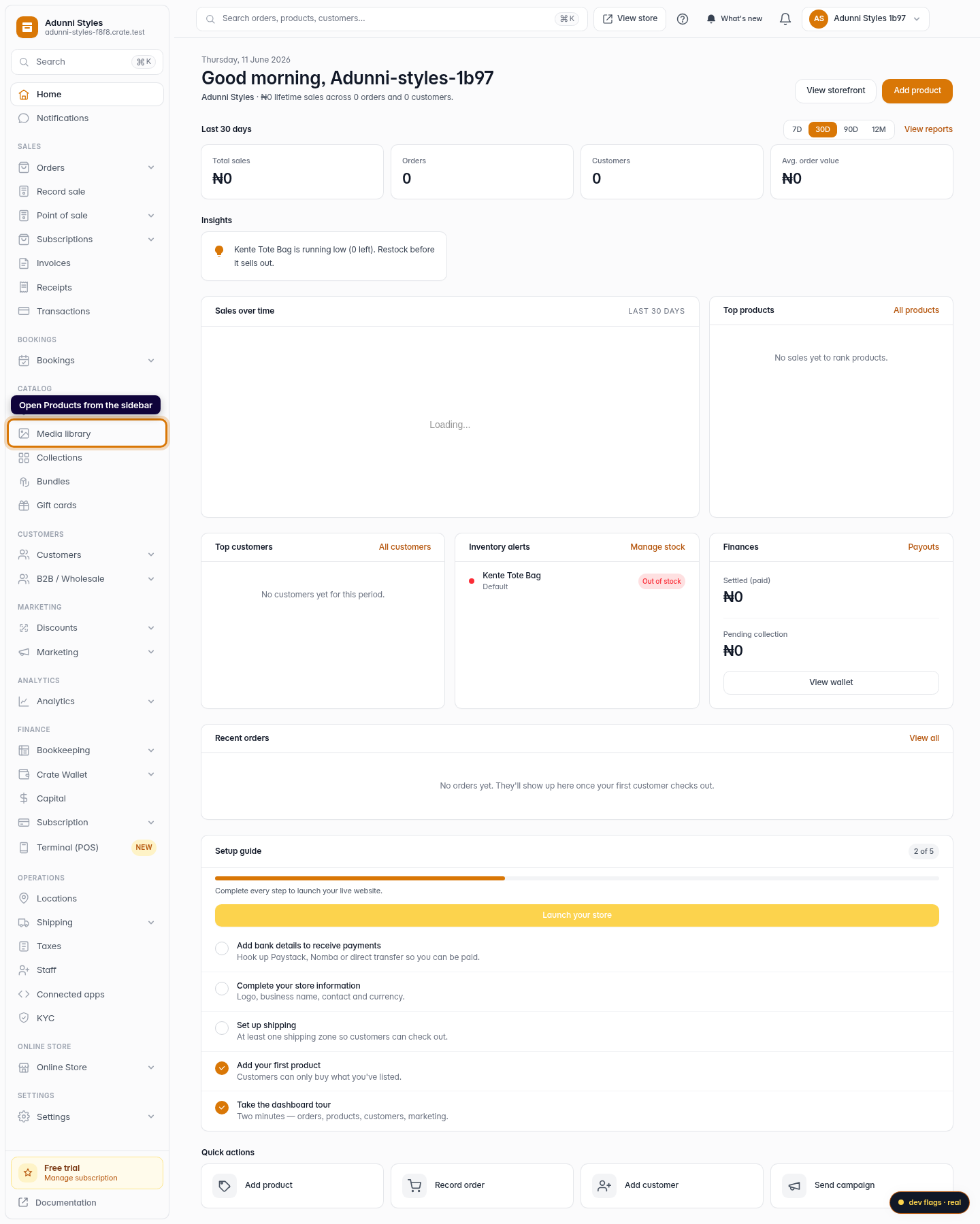
From your Crate dashboard, open Products in the left sidebar.
Web -
2
Click Export CSV
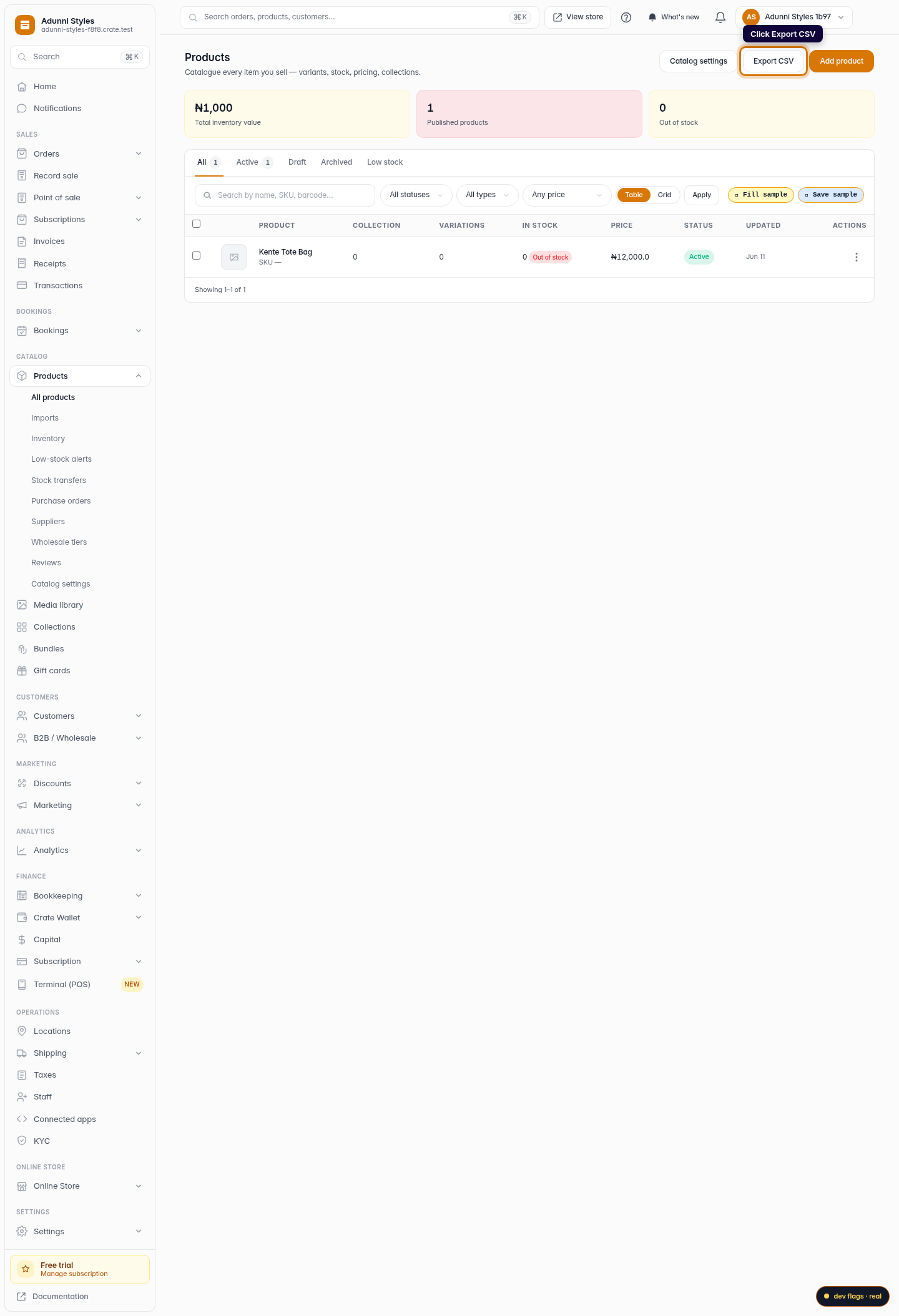
In the top-right of the Products page, click Export CSV. Crate opens a short preview of what your export will contain.
Web -
3
Review the columns
Crate lists the columns every export includes (id, name, sku, price, stock and status) so you know exactly what you're downloading before you start.
Web -
4
Download the file
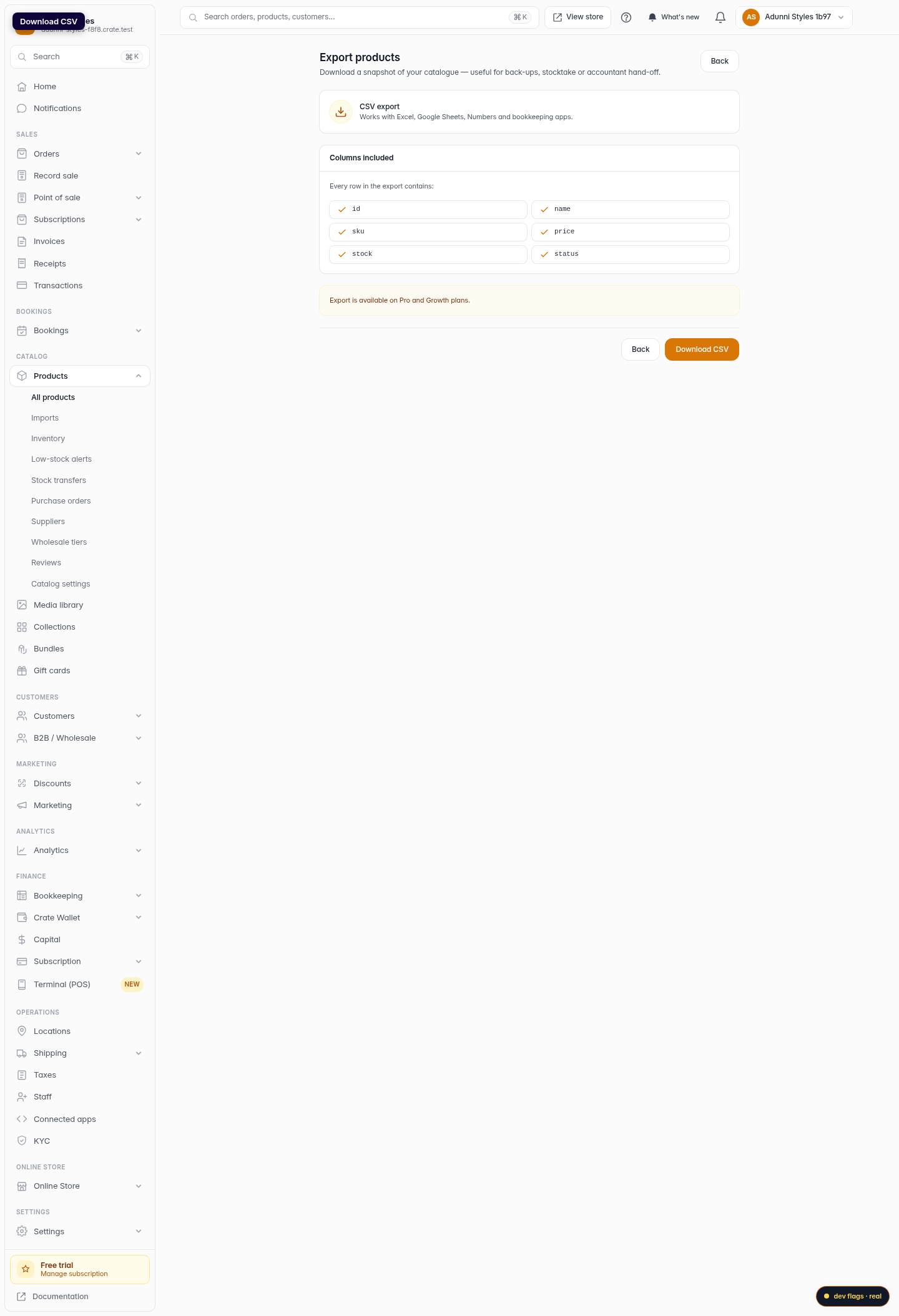
Click Download CSV. Your catalogue downloads as a spreadsheet that opens in Excel, Google Sheets, Numbers or any bookkeeping app.
Web