Order history and timeline
Every order keeps a running timeline (created, edited, paid, fulfilled, cancelled, refunded) so you can see exactly what happened to it and when.
When you edit an order, the change doesn't just overwrite the old version silently. Crate records it. Every order carries a Timeline: a chronological audit trail of everything that has happened to it, so you and your team always have an accurate, up-to-date picture of the order.
What the timeline records
The timeline captures each milestone and edit as its own entry:
- Order placed: the anchor at the bottom of the list.
- Order edited: written whenever you change items, price, shipping, or address.
- Payment, fulfilment, cancellation, and refund events as they happen.
- Notes and tags your team adds.
Each entry shows the date and time and, where it applies, the teammate who made the change, so nothing about an order's history is a mystery.
Why it matters
Because the timeline is appended to rather than replaced, the order page always shows the most current version while keeping a complete record of how it got there. If a customer queries why a total changed or when an order shipped, the answer is right there on the order, no guesswork, no separate spreadsheet. For private context that shouldn't appear on the timeline, add an Internal note in the card just above it; notes are visible only to your team.
-
1
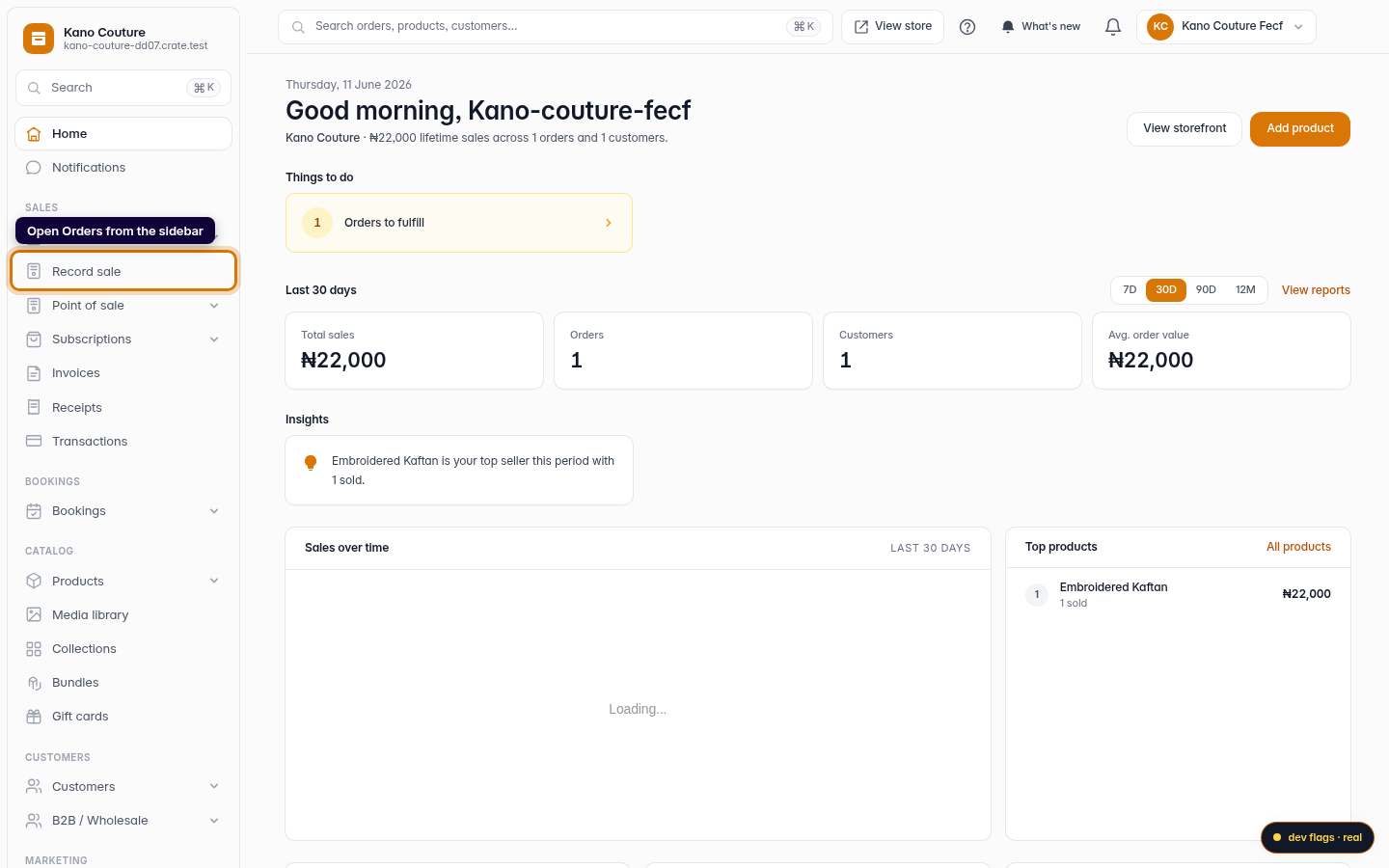
Open Orders
From your dashboard, open Orders in the left sidebar.
Web 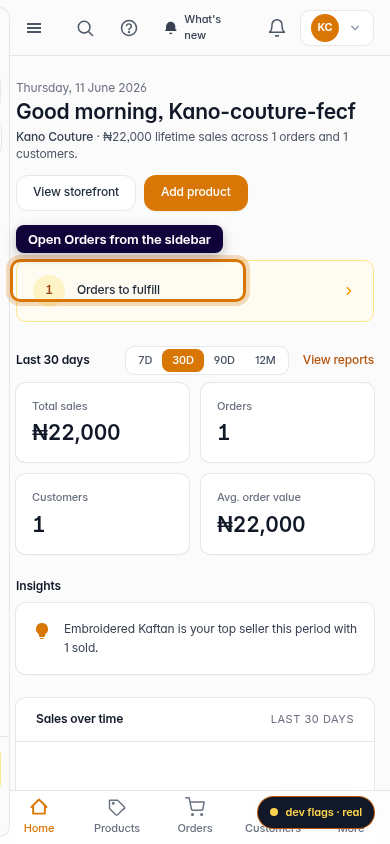
Mobile -
2
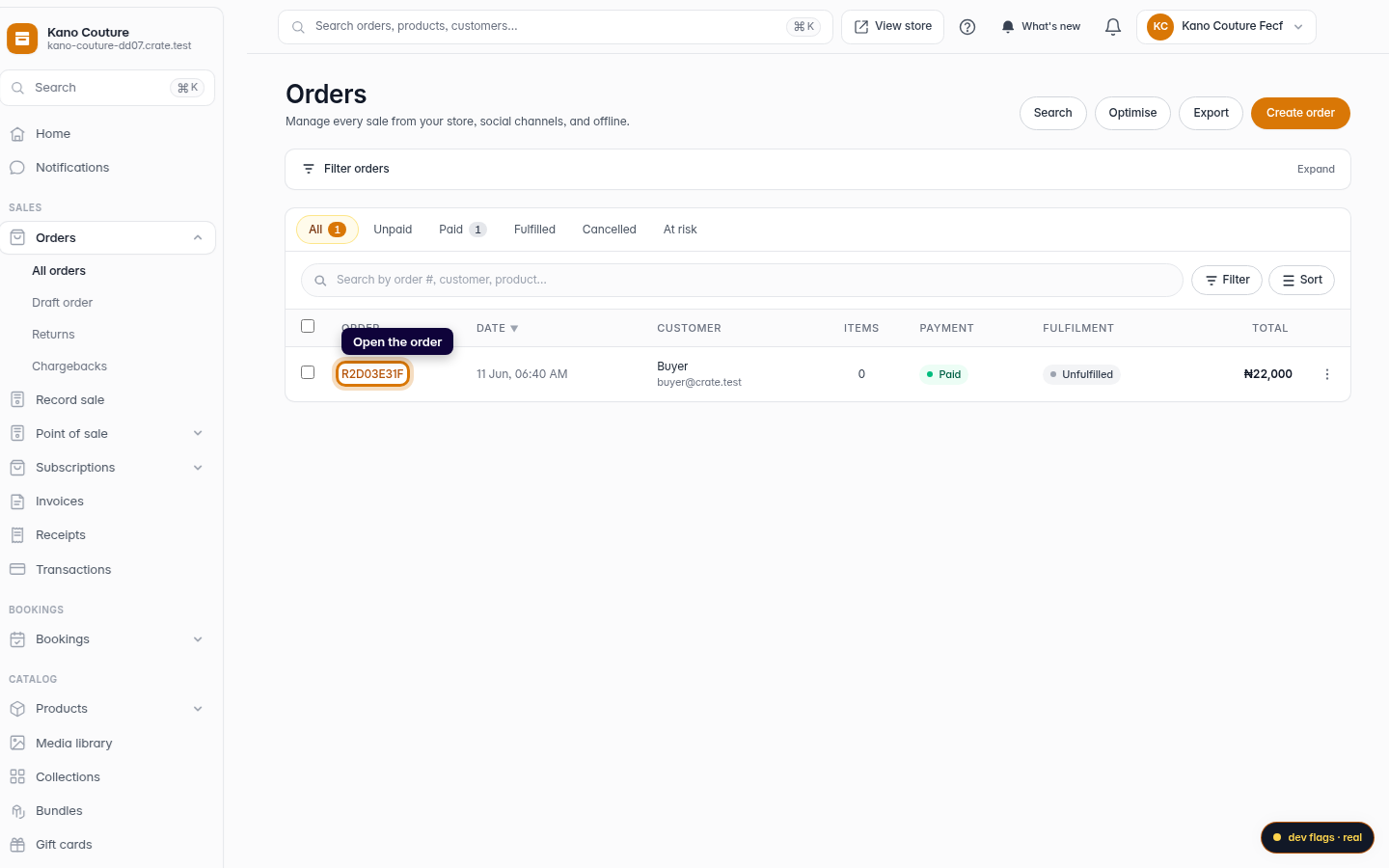
Open the order
Click any order to open its detail page. The full history lives on this page.
Web -
3
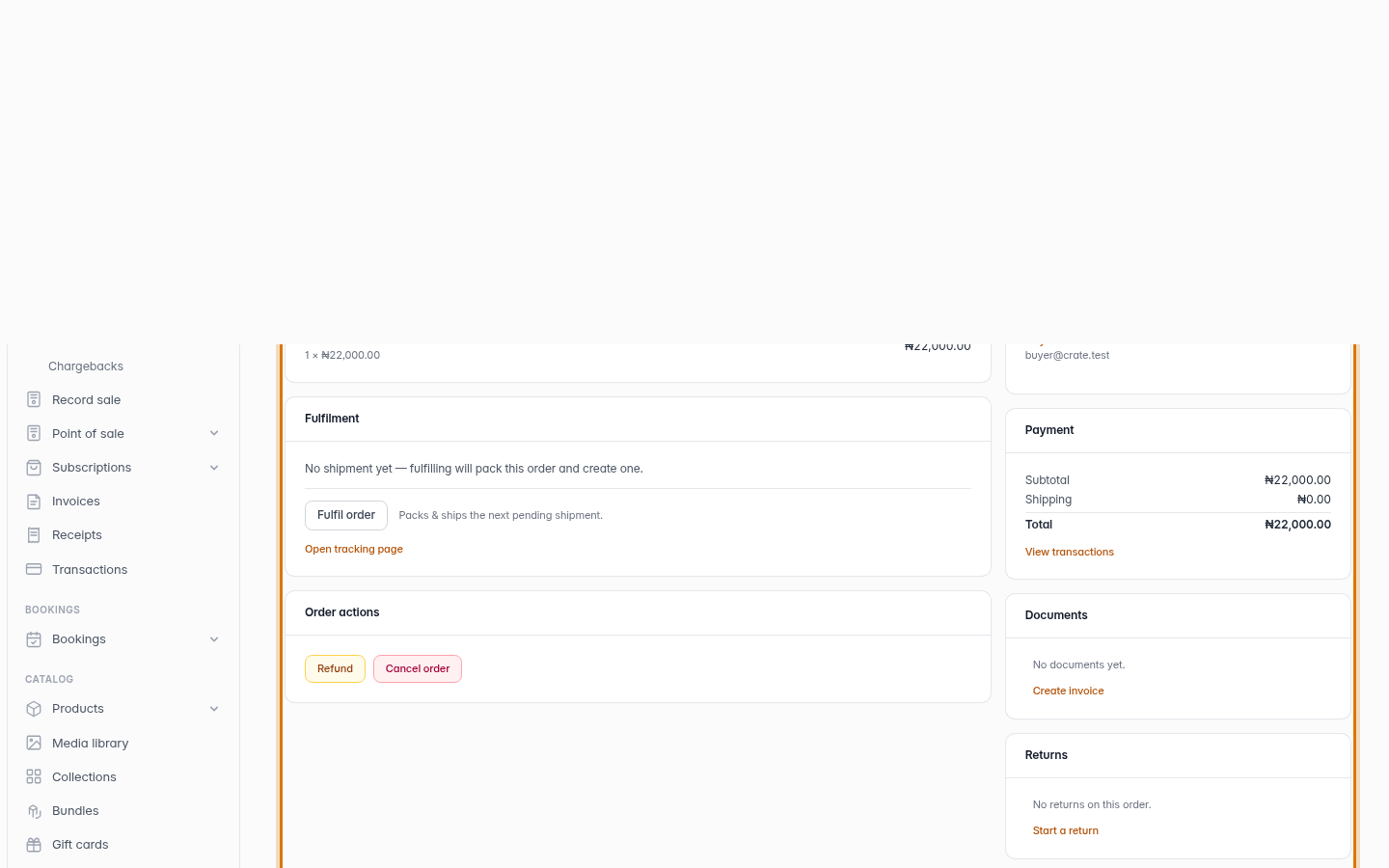
Read the Timeline
Scroll to the Timeline card. Each entry is a moment in the order's life (placed, edited, paid, fulfilled, refunded) stamped with the date, time, and the teammate who made the change. The newest change sits at the top.
Web