Create, edit or delete a collection
Collections gather related products onto one browsable page so shoppers find more of what they want. Learn how to create a collection, change it and remove it.
Collections are how you turn a flat product list into a storefront customers can actually browse. Group products by season, style or occasion (Aso ebi, New Arrivals, Detty December) and each collection becomes its own page and menu link, so shoppers discover more in one visit.
This guide covers the full lifecycle: creating a collection, editing it later, and deleting one you no longer need.
Manual vs automated
When you create a collection you choose how products join it:
- Manual: you hand-pick products one by one. Best for a curated edit like a lookbook.
- Automated: you set a condition (for example tag is
summer) and any matching product joins automatically. Best for collections that should keep themselves up to date.
You can switch a collection between the two at any time from its edit page.
Deleting is safe
Deleting a collection only removes the grouping: the storefront page and its menu link. Every product in it stays in your catalogue and in any other collections it belongs to. Nothing is sold, hidden or lost.
Tip: Not ready to show a collection yet? Instead of deleting it, edit it and tick Draft (hide from storefront). It stays in your dashboard but never appears to buyers until you're ready.
-
1
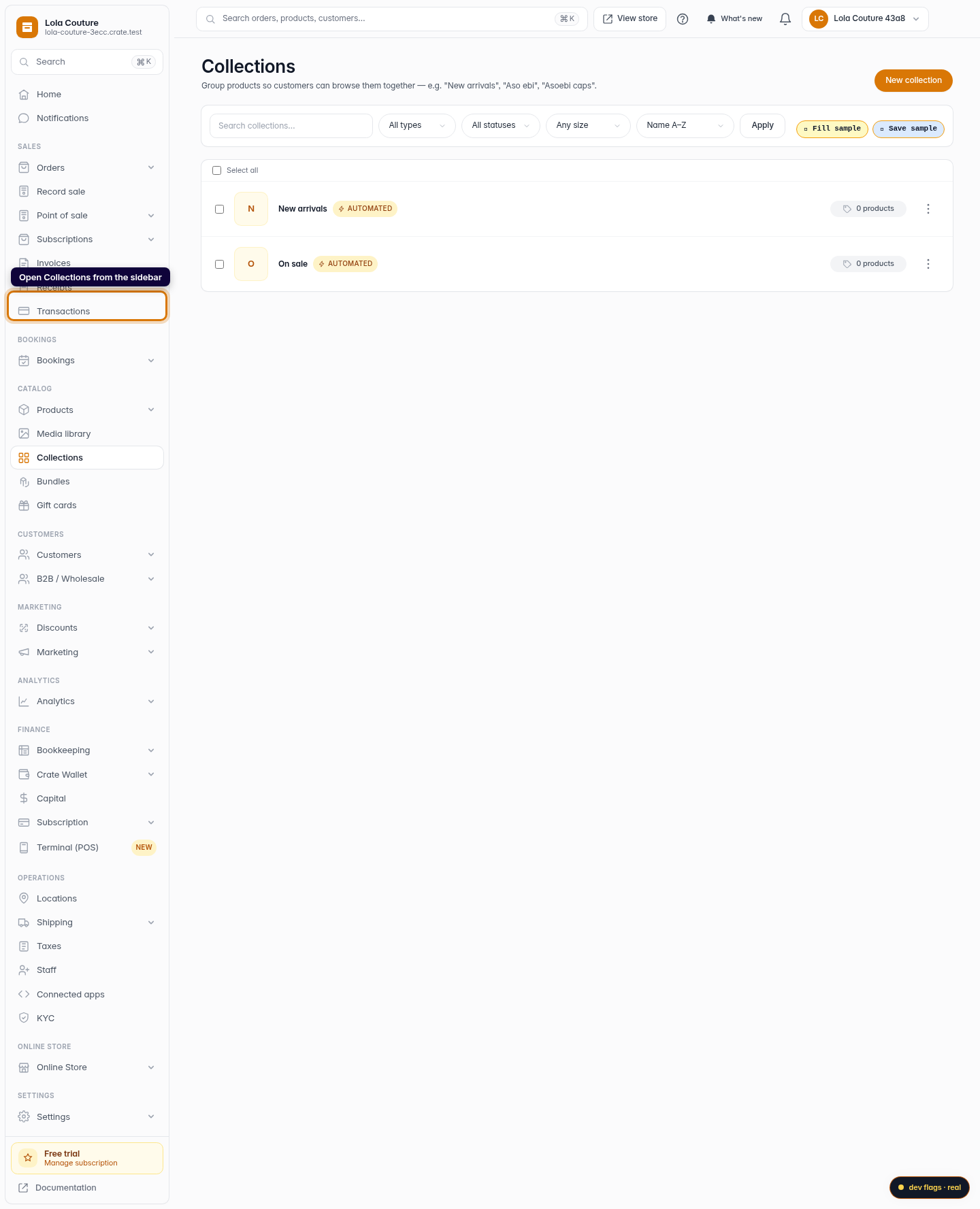
Open Collections
From your Crate dashboard, open Collections in the left sidebar. This is where every storefront grouping lives.
Web 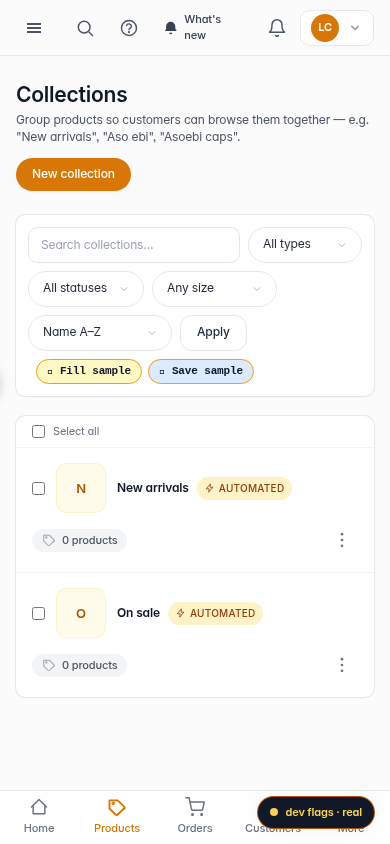
Mobile -
2
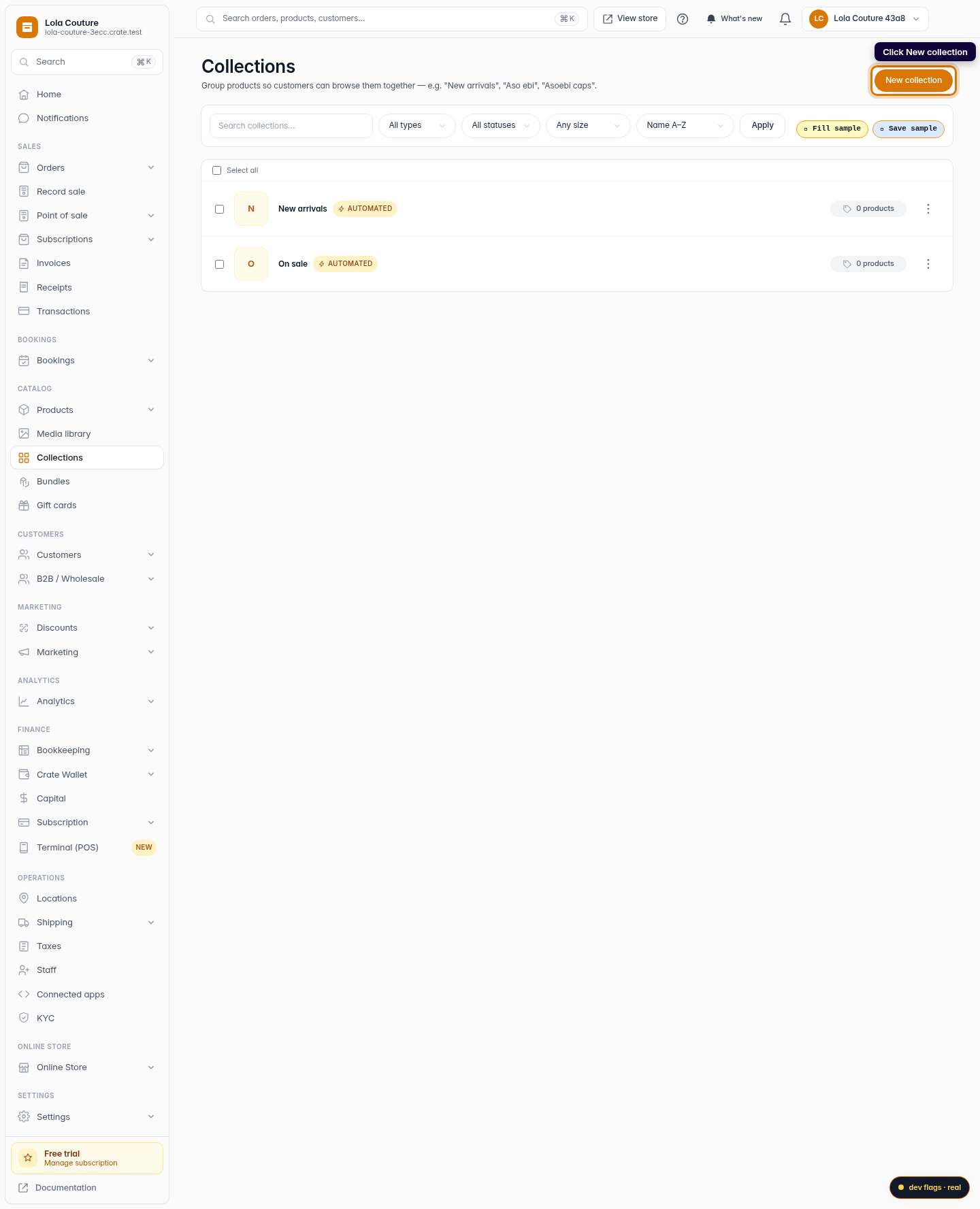
Start a new collection
Click New collection in the top-right corner.
Web -
3
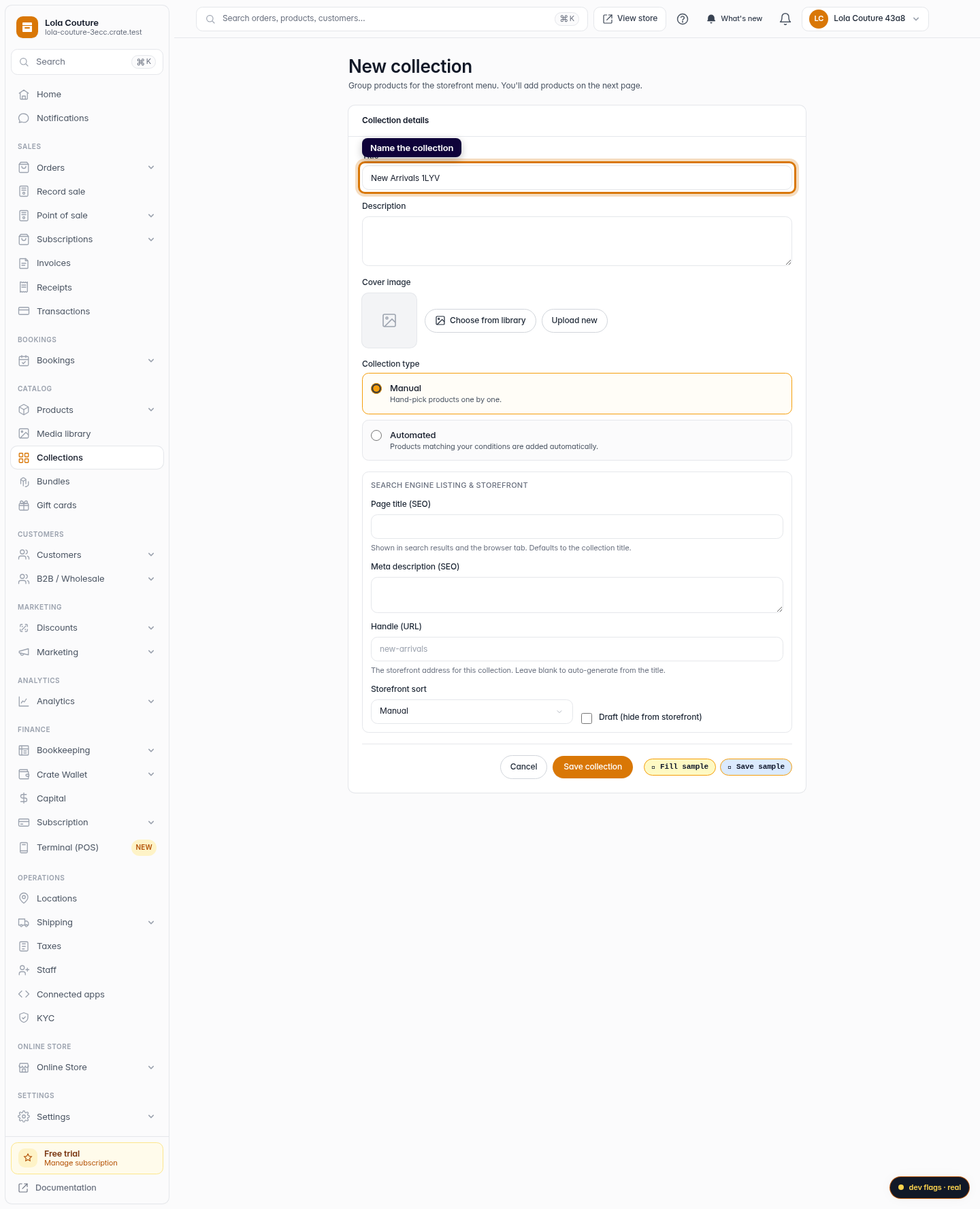
Name the collection
Give it a clear, shopper-facing name, for example New Arrivals. This becomes a menu link on your storefront automatically.
Web 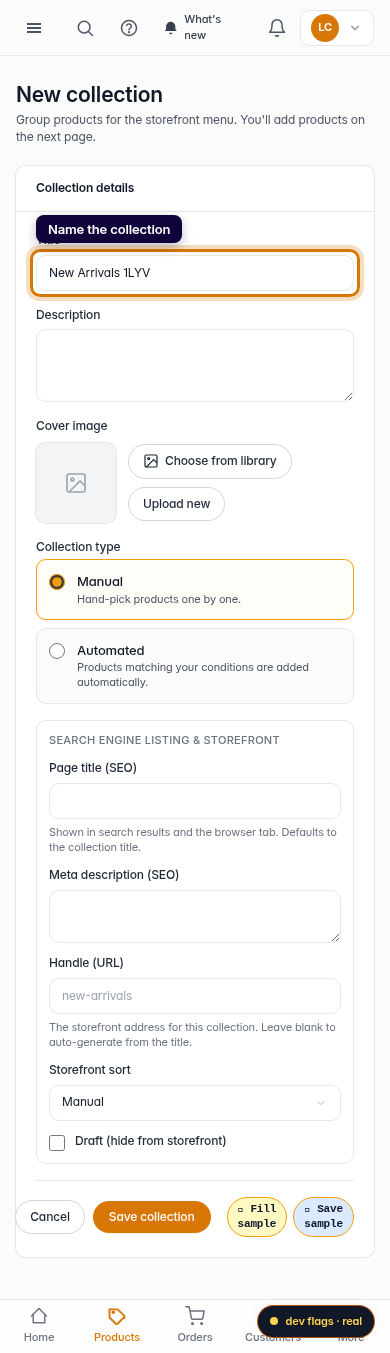
Mobile -
4
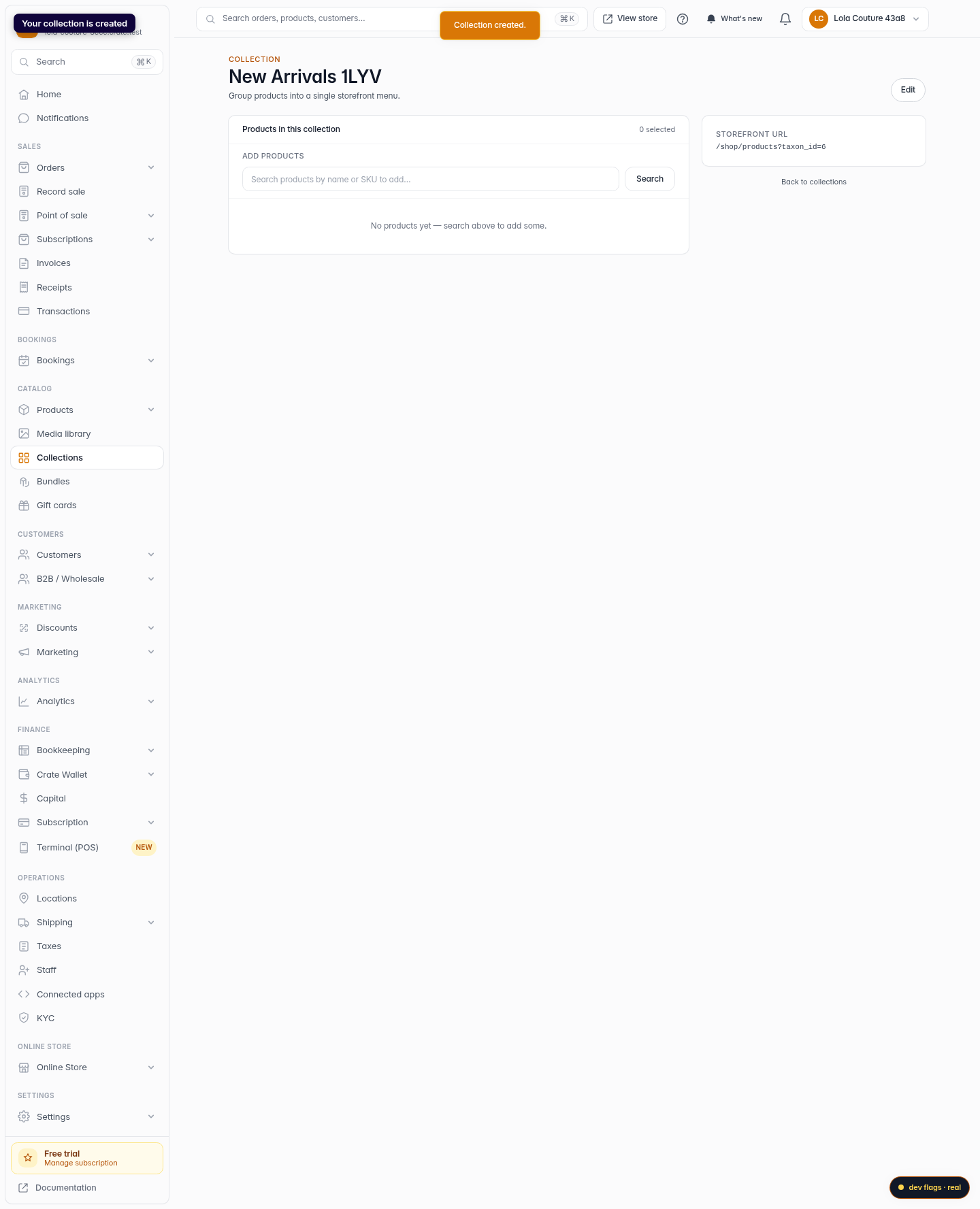
Save the collection
Click Save collection. Crate creates it and takes you to the collection page, where you add products.
Web -
5
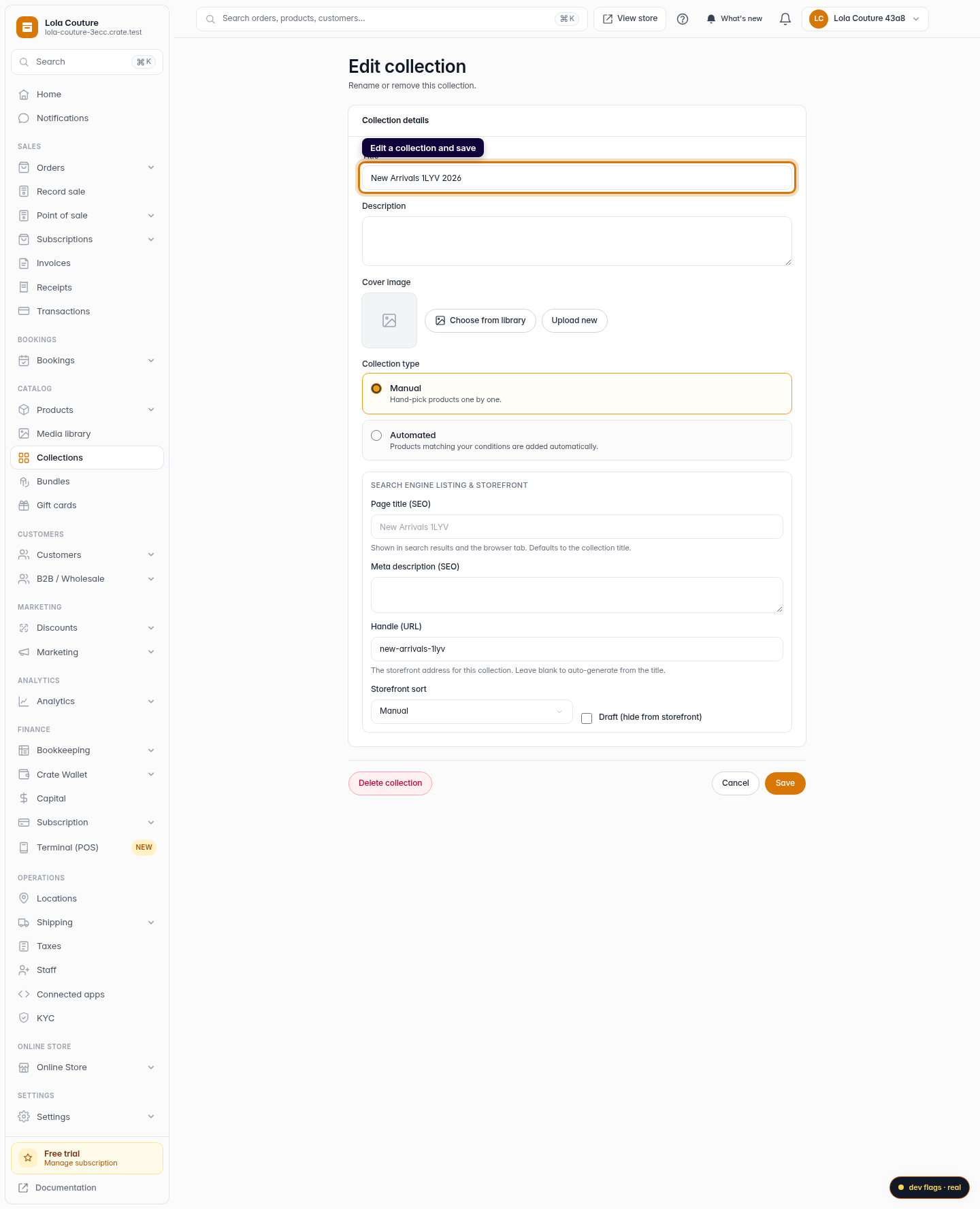
Edit a collection
Back on the Collections list, open a collection's actions menu (the ⋮ button) and choose Edit to change its name, description, type or storefront settings. Make your changes and save.
Web -
6
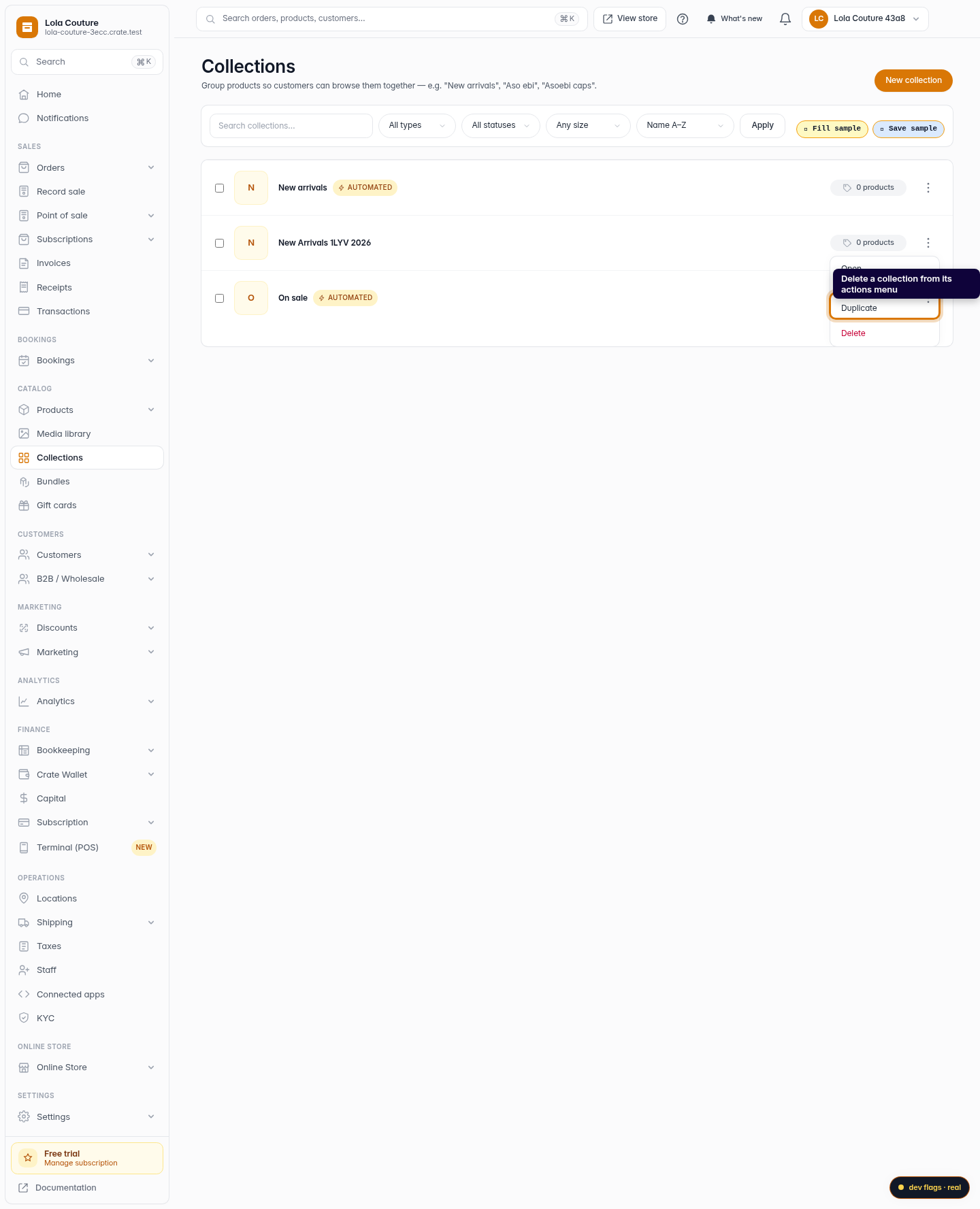
Delete a collection
To remove a collection, open the same actions menu and choose Delete, then confirm. The collection is removed from your storefront; your products stay safely in your catalogue.
Web