View your Terminal transactions
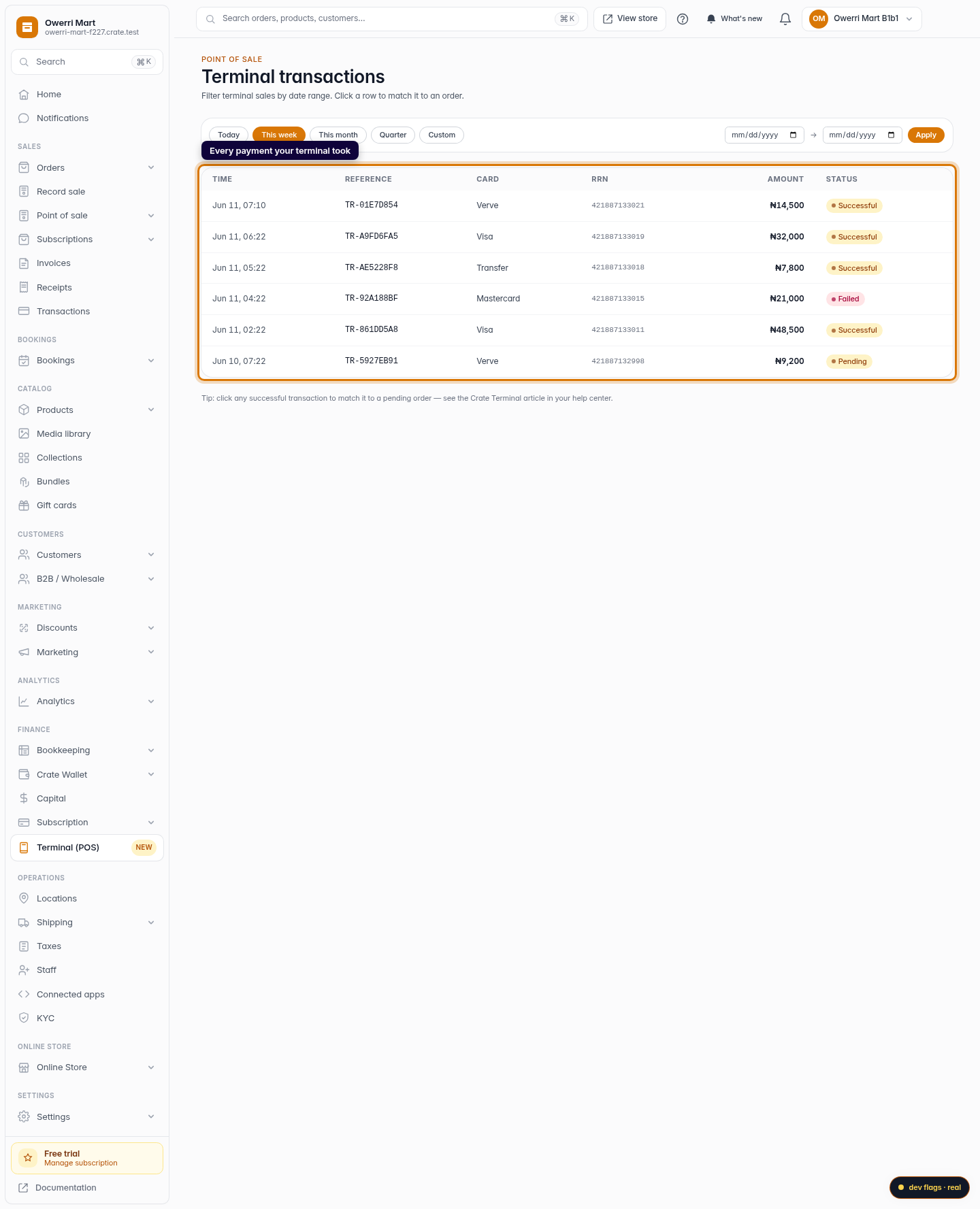
Every card payment and transfer your Crate Terminal takes appears here in real time, with its reference, amount and status, and you can filter by date.
Where settlements show what hit your bank, Transactions show every individual sale your Crate Terminal processed: successful, pending or failed. It's the page you open when a customer says "I paid" and you need to confirm it landed.
What each transaction tells you
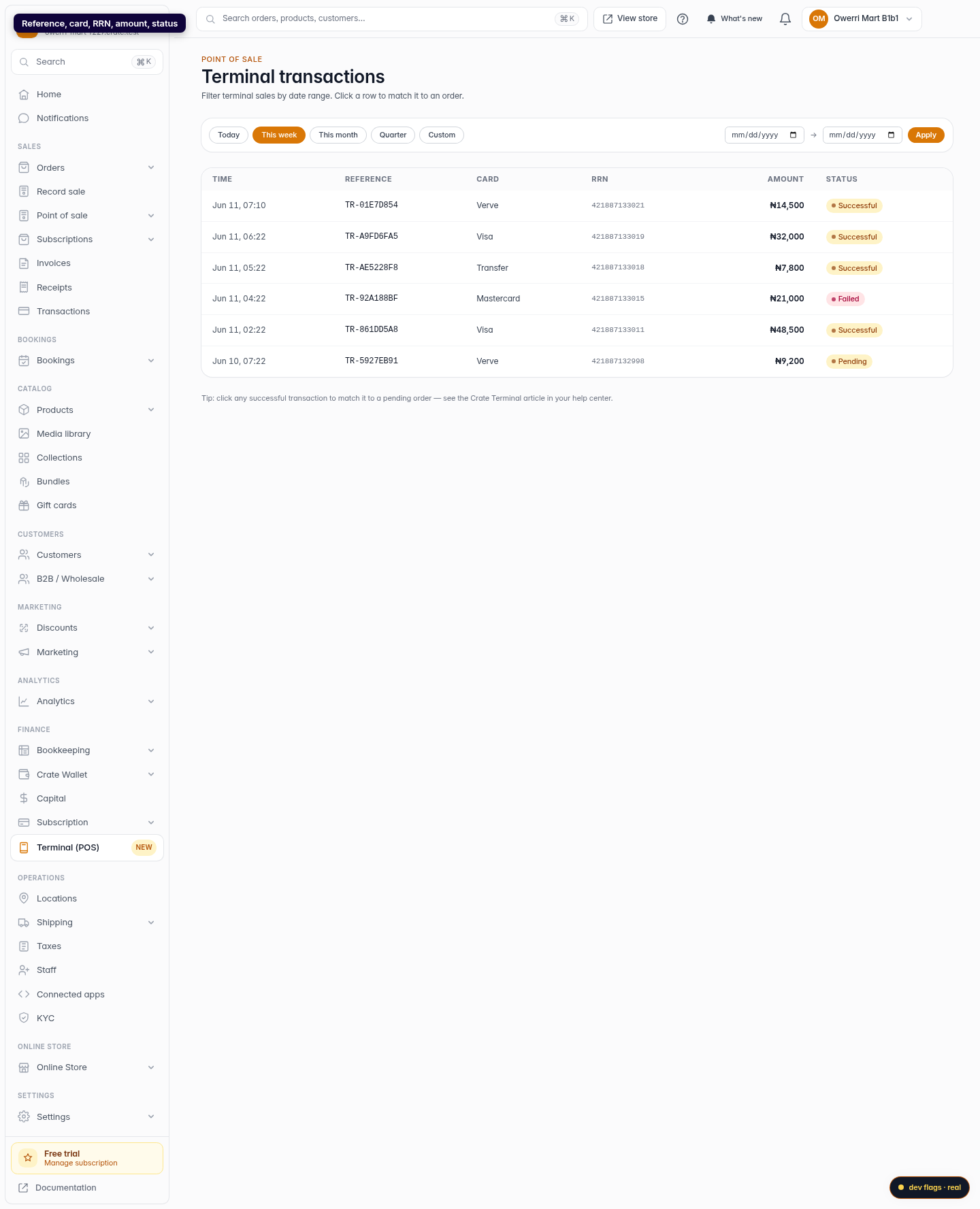
- Time: when the payment was attempted.
- Reference: Crate's unique ID for the sale.
- Card: Verve, Visa, Mastercard, or a bank Transfer.
- RRN: the bank's Retrieval Reference Number, useful if you ever raise a dispute.
- Amount: what the customer was charged.
- Status: Successful is money taken; Pending is still confirming; Failed means nothing was charged.
Finding a specific sale
Use the date chips to jump to Today or This week, or set a precise From / To range and click Apply, for example to pull every sale between the 1st and the 9th. Clear the range to go back to the full list.
Tip: a successful transaction can be matched to a pending order to mark it paid. Open the transaction and link it to the order it belongs to.
-
1
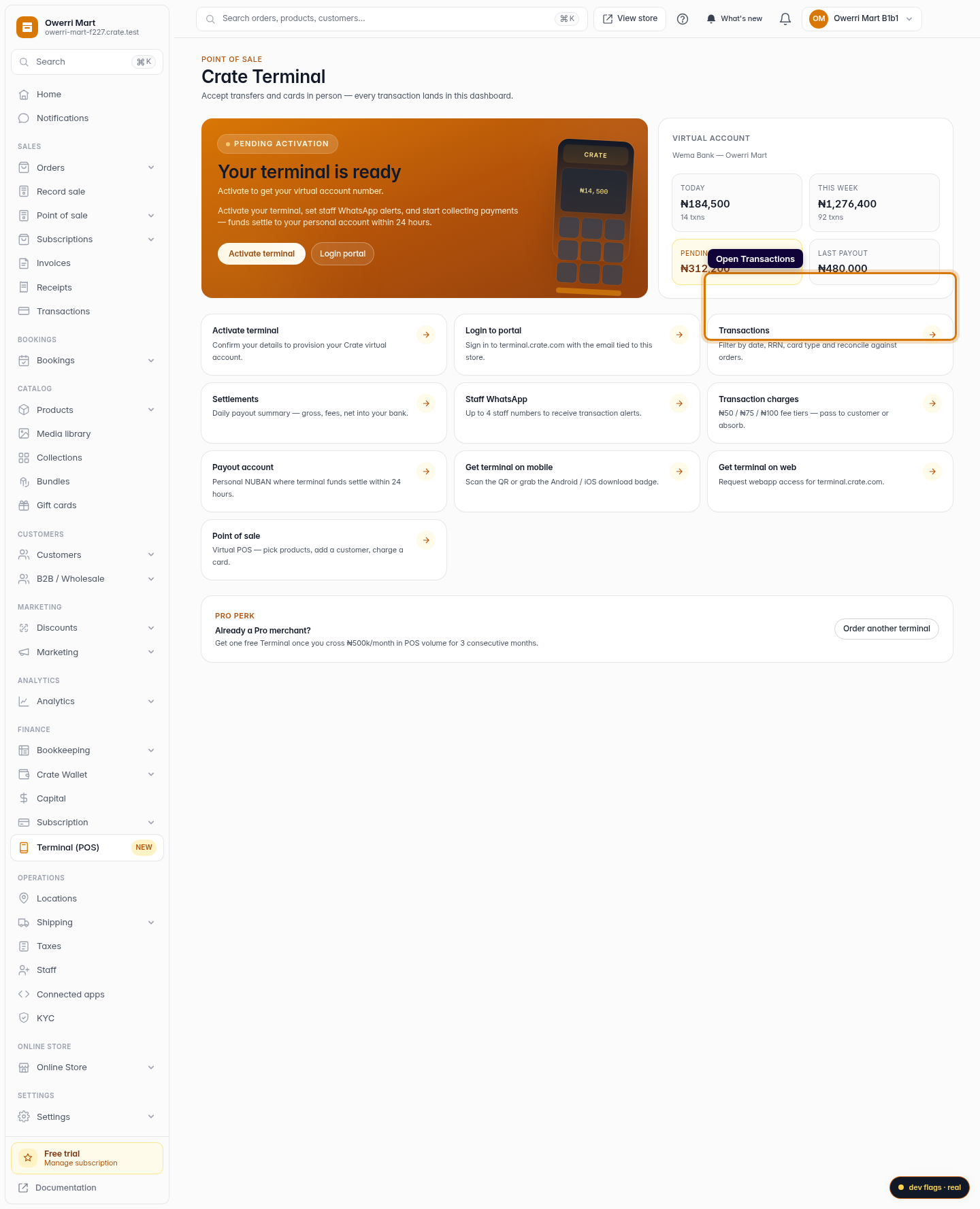
Open Terminal
From your dashboard, open Terminal (POS) in the sidebar.
Web 
Mobile -
2
Open Transactions
On the Terminal hub, choose Transactions to see every payment your terminal has taken.
Web -
3
Read a transaction
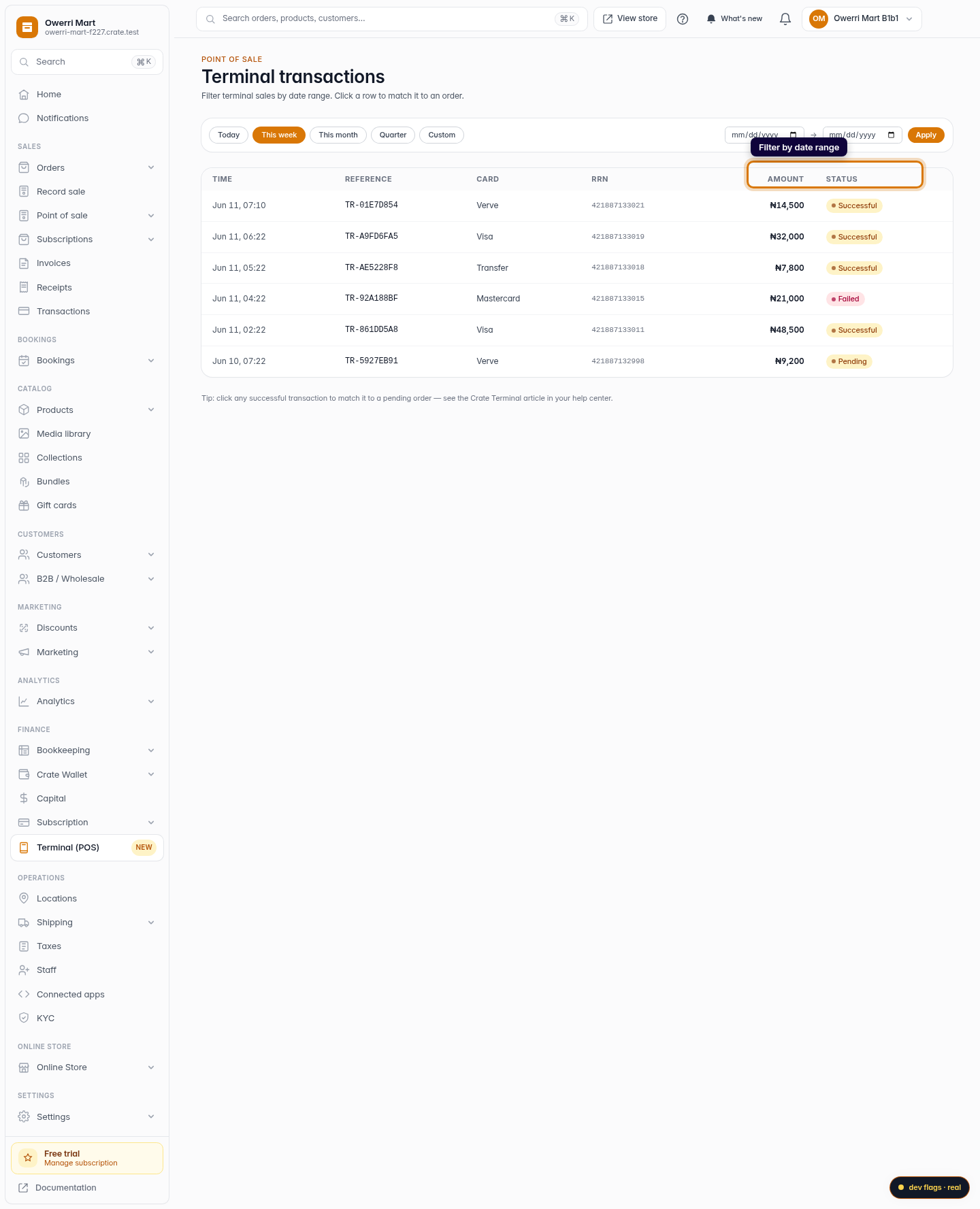
Each row shows the time, a unique reference, the card type, the bank RRN, the amount, and whether it was successful, pending or failed.
Web 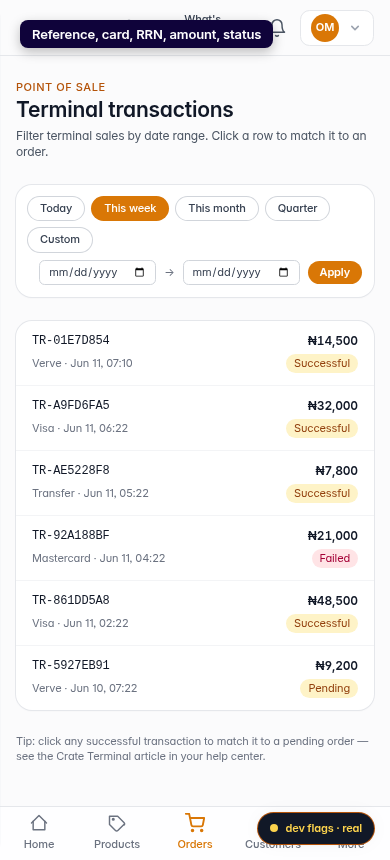
Mobile -
4
Filter by date
Switch between Today, This week, This month or Quarter, or pick a custom From / To range and click Apply to see only sales in that window.
Web