Export your customers
Download your full customer list as a CSV in one click (emails, phone numbers and order stats), ready to open in Excel or import into another tool.
Sometimes you need your customer list outside Crate, to crunch numbers in a spreadsheet, hand it to an accountant, or import it into an email tool. Exporting takes one click and gives you a clean CSV you can open in Excel, Google Sheets or Numbers.
What the file contains
The export is a comma-separated file with one row per customer: their name, email, phone and the order stats Crate tracks. It's plain CSV, so any spreadsheet app opens it directly.
Tip: Use the segment filter before you export. If you switch to Email subscribers or VIP first, the download contains only those customers, handy when you're building a targeted list for an external campaign rather than exporting everyone.
A note on your data
Your customer list is personal data, so treat the exported file with care; it leaves Crate's protections behind the moment it lands on your device. Store it somewhere private, and delete stray copies once you're done. Inside Crate, exporting is a permission your team owns individually, so you control who on staff can pull the full list.
-
1
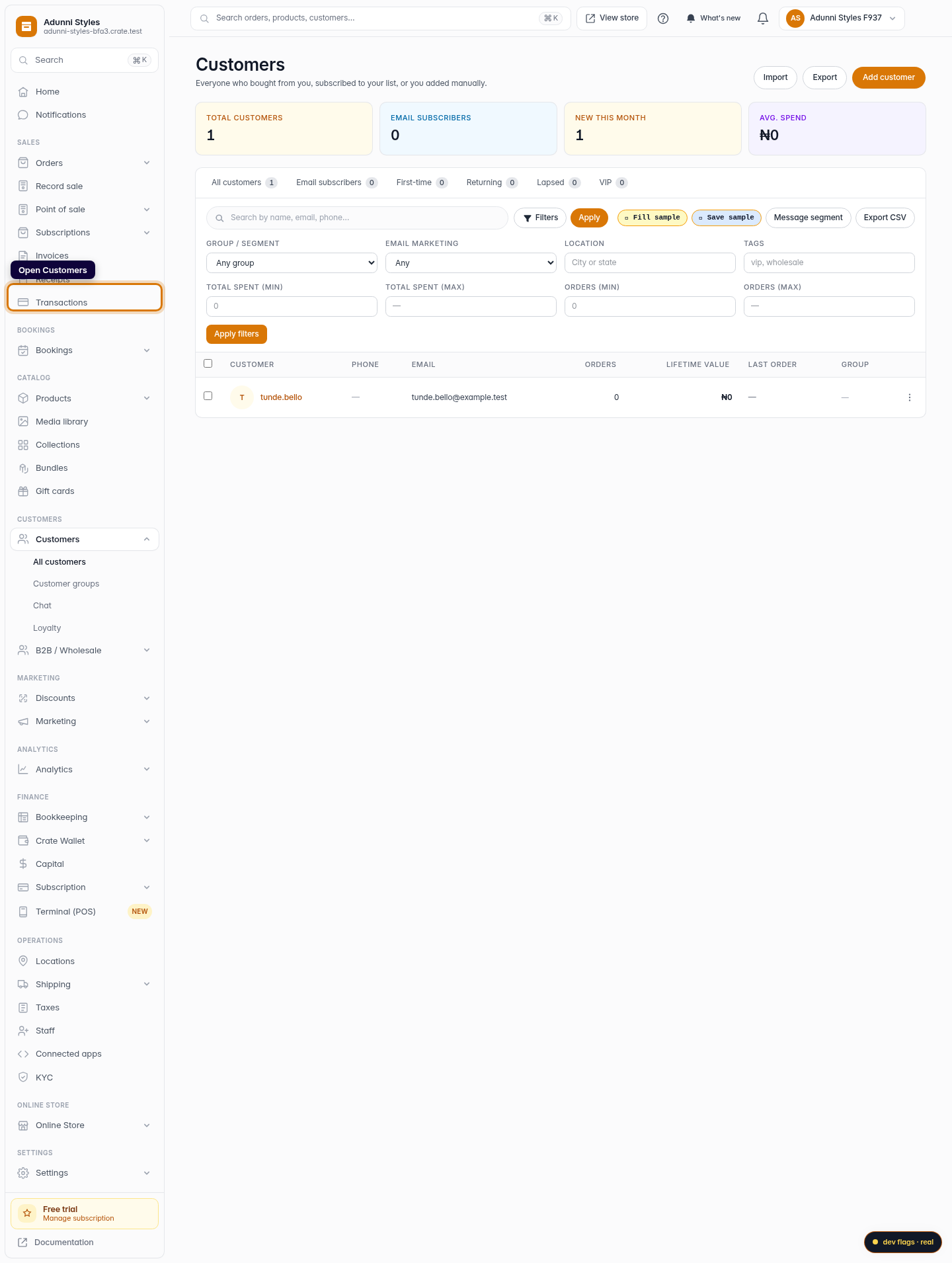
Open Customers
From your Crate dashboard, open Customers in the left sidebar to see your full list.
Web 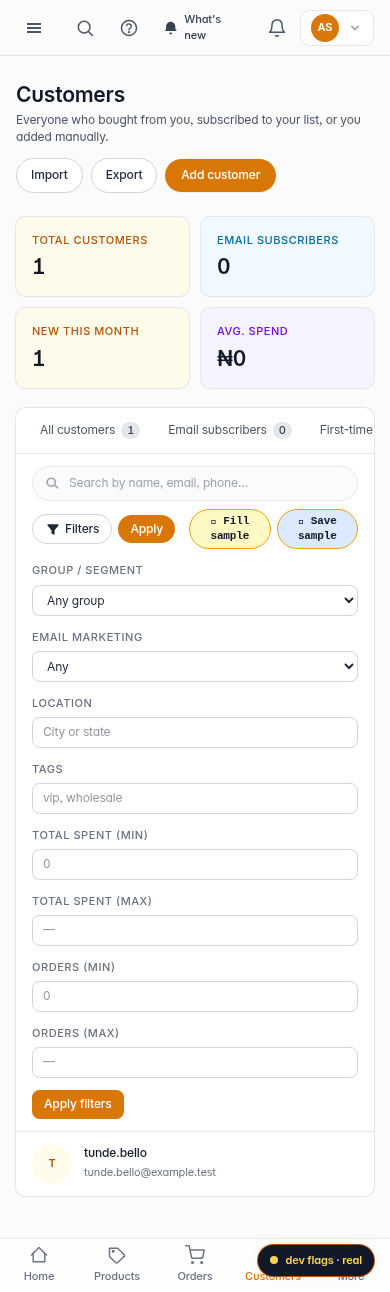
Mobile -
2
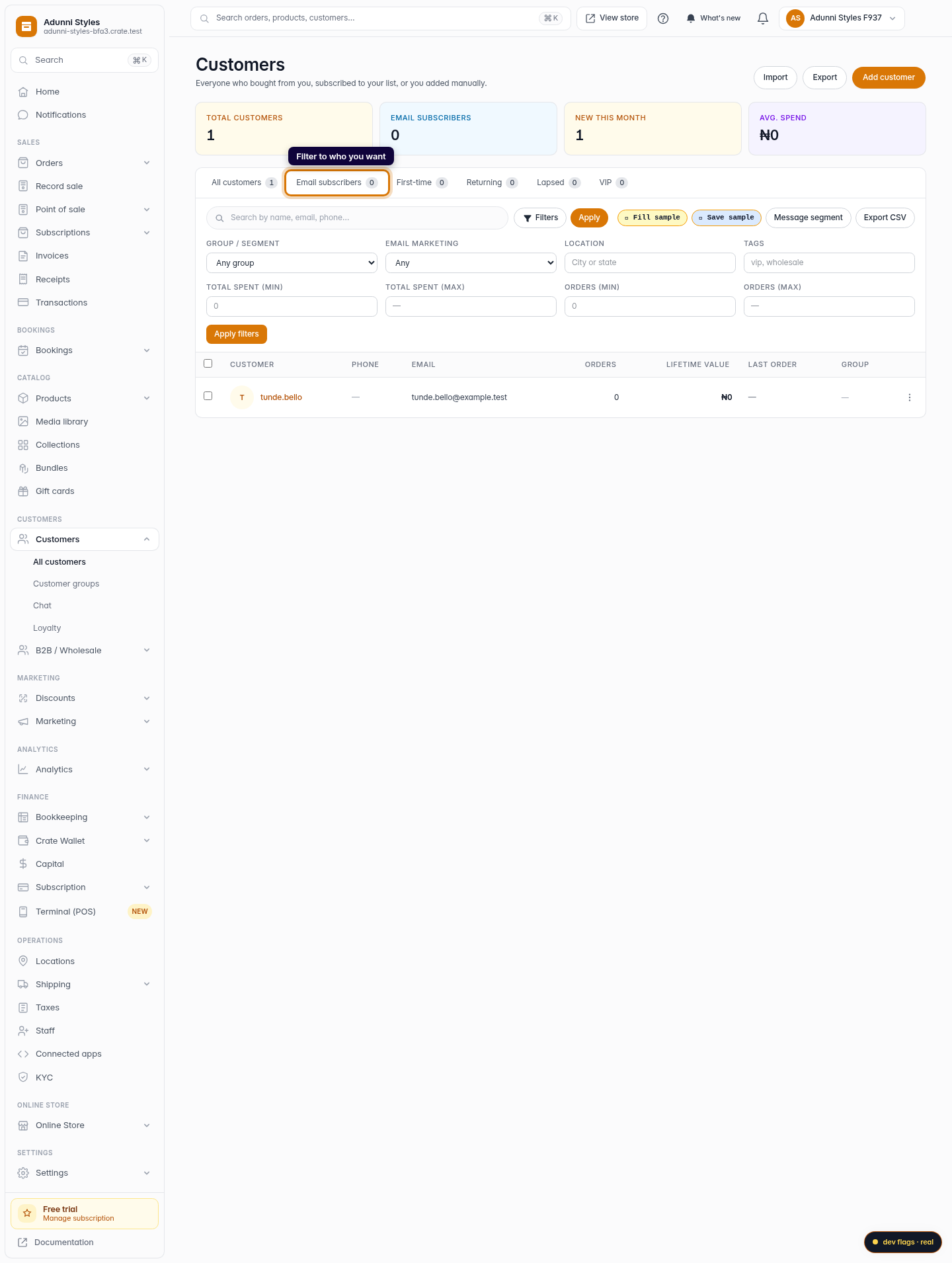
Filter to who you want (optional)
If you only need a slice (say email subscribers or VIPs), choose a segment first. Crate exports exactly the list you're currently viewing.
Web -
3
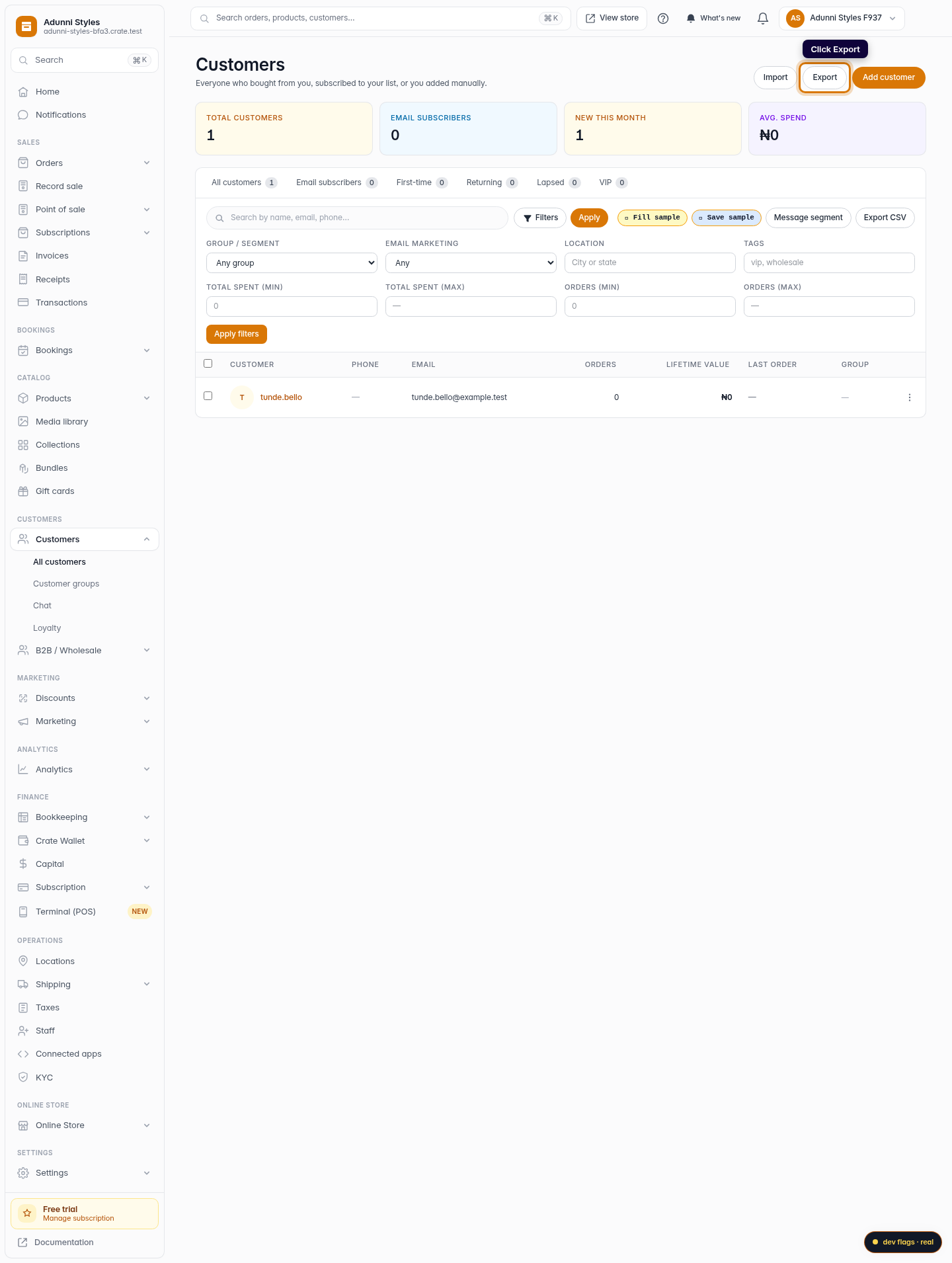
Click Export
Click Export in the top-right corner of the Customers page. Crate generates a CSV of the current list and downloads it to your device.
Web 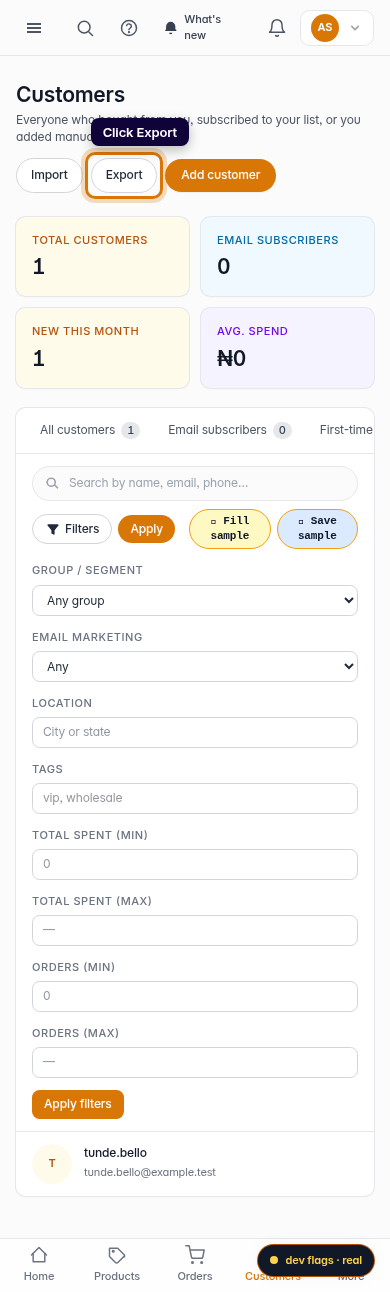
Mobile