How to edit customer groups
Rename a segment, adjust its rules or curate its members; keep your customer groups sharp so every campaign targets the right buyers.
A segment isn't set in stone. As your business changes (a new VIP threshold, a city you've started shipping to, a tag you've retired) you'll want to revise your groups so they keep targeting the right people. Editing a group lets you do that without rebuilding it from scratch.
What you can change
Opening a group for editing reloads the full segment builder with its saved values: the name, the description, the type (dynamic or manual), and (for dynamic segments) every rule and the match mode. Change any of them and save.
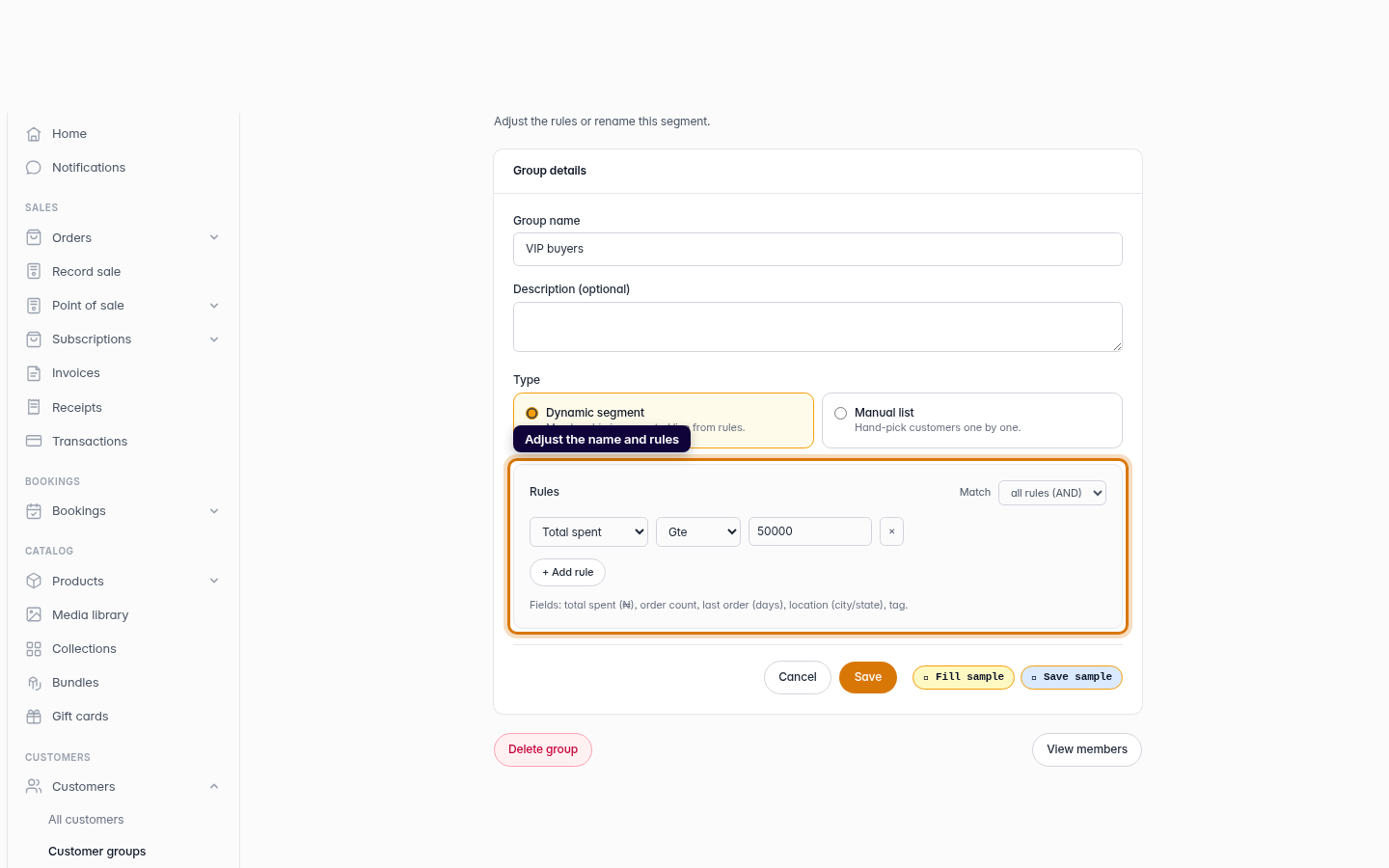
For a dynamic segment, the rule builder is the heart of the edit: add rules with + Add rule, remove ones you no longer want, and adjust thresholds like raising your VIP bar from ₦50,000 to ₦100,000. Because membership is computed live, the moment you save, the group reflects the new rules, no need to re-add anyone.
Curating a manual list
A manual group is curated from its own page rather than the rule builder. Open the group to add store customers from the dropdown or remove members from the list, handy for a hand-picked audience like a wholesale shortlist.
Tip: Need to retire a segment entirely? The edit screen has a Delete group button. Deleting a group never deletes the customers in it; it only removes the segment.
-
1
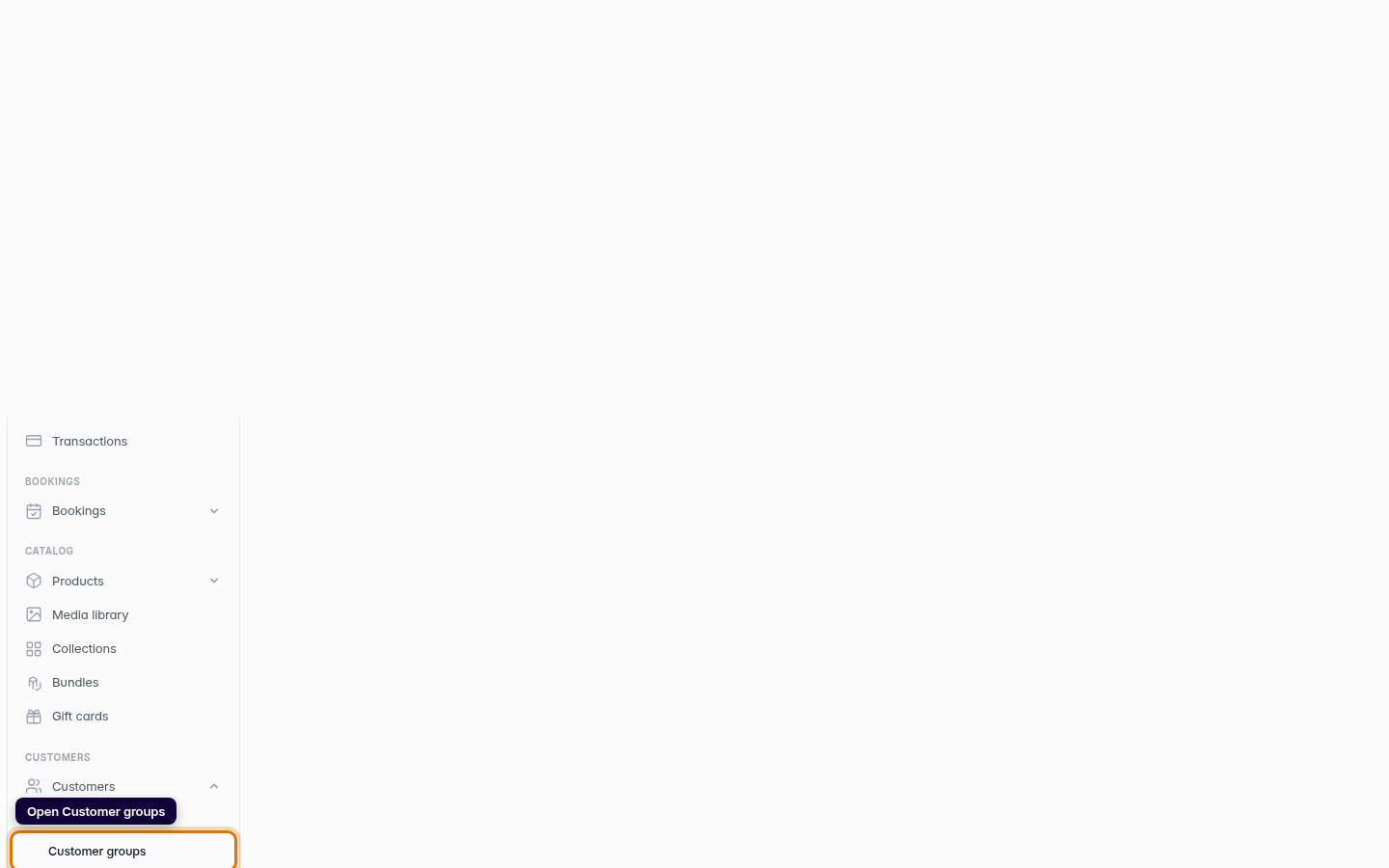
Open Customer groups
From the dashboard sidebar, open Customers and choose Customer groups to see all your segments.
Web -
2
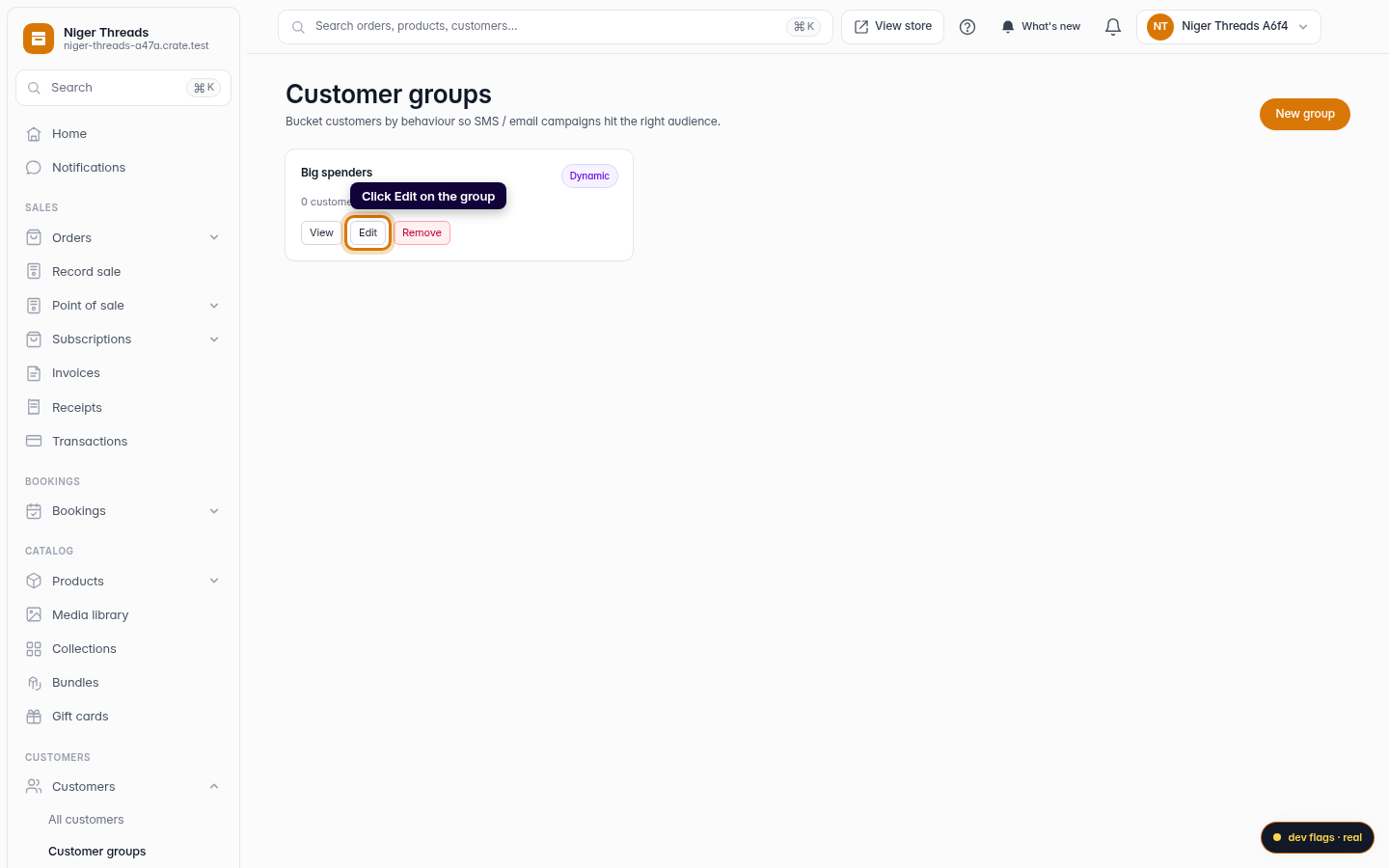
Edit the group
Find the group you want to change and click Edit on its card to open the segment builder with its current settings.
Web -
3
Adjust the name and rules
Change the group name or description, and for a dynamic segment, tweak the rules: add a rule, remove one, or change a threshold. Switch the match mode between all rules (AND) and any rule (OR) to widen or narrow who qualifies.
Web -
4
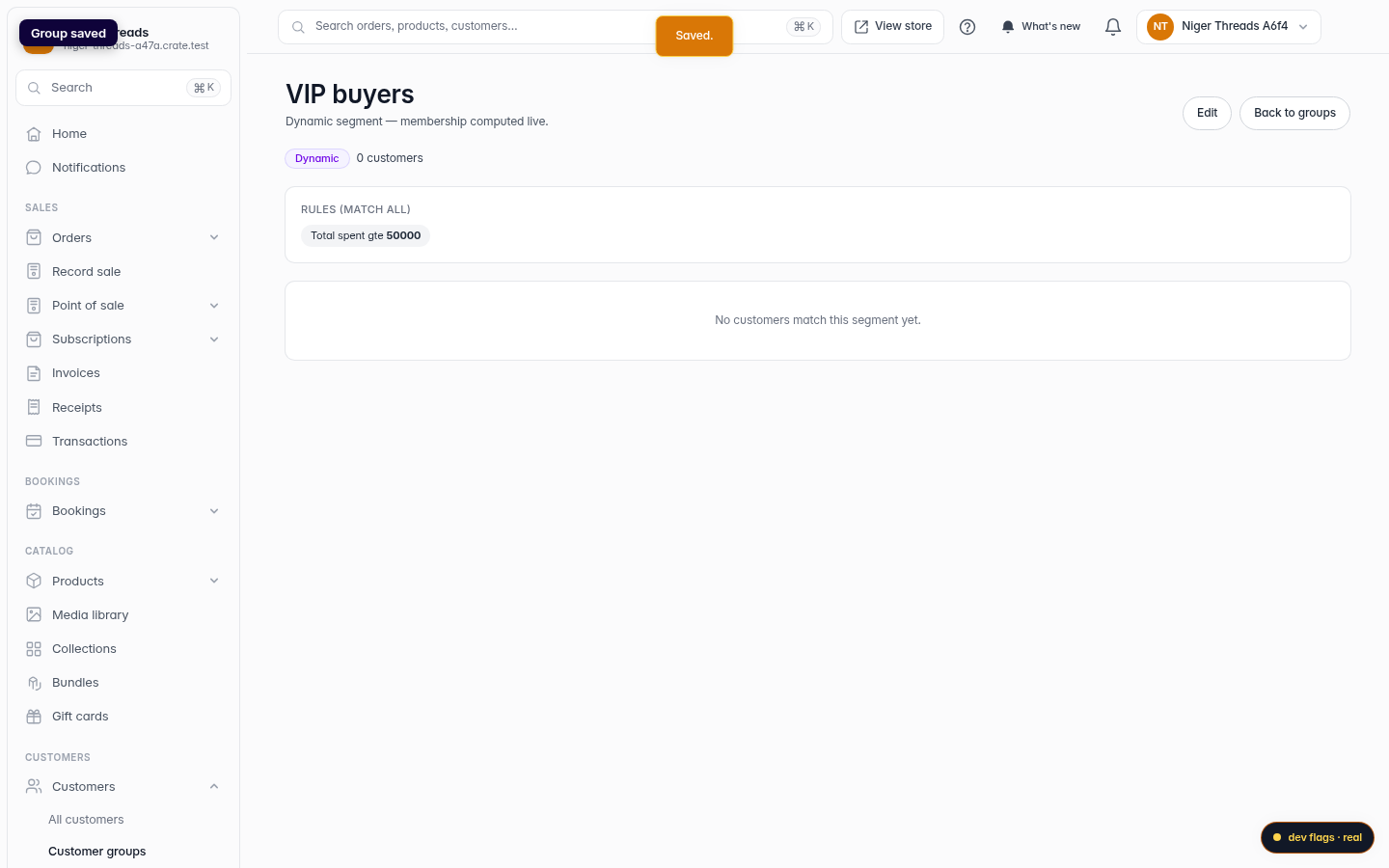
Save your changes
Click Save. Crate applies the new settings; a dynamic segment immediately recomputes its membership against the updated rules.
Web