Work across multiple locations
Run more than one shop, warehouse or pickup point? Add each as a location, then switch between them so stock and in-person sales follow where you are.
If your business runs from more than one place (two branches, a shop plus a warehouse, a couple of pickup points) Crate keeps each one straight. You list every physical location, and stock, inventory and in-person sales scope to whichever location you're working in. No more guessing which branch a sale or a stock count belongs to.
Adding your locations
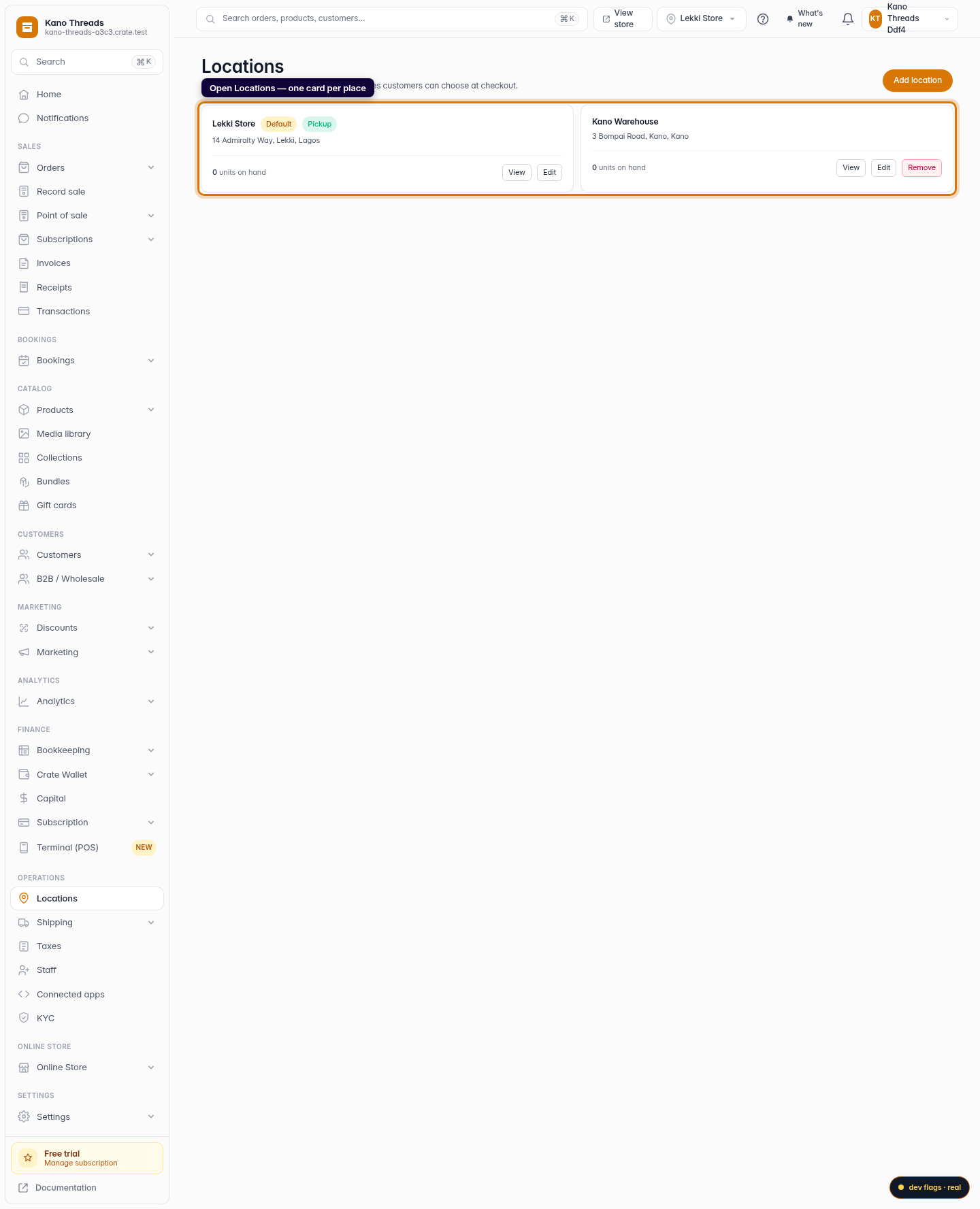
Open Locations and add each physical place. Crate treats one as your Default (the location new stock and orders fall back to) and you can mark any location as a Pickup point so shoppers can collect there at checkout. Each card surfaces the address, contact details, and the units on hand at that location.
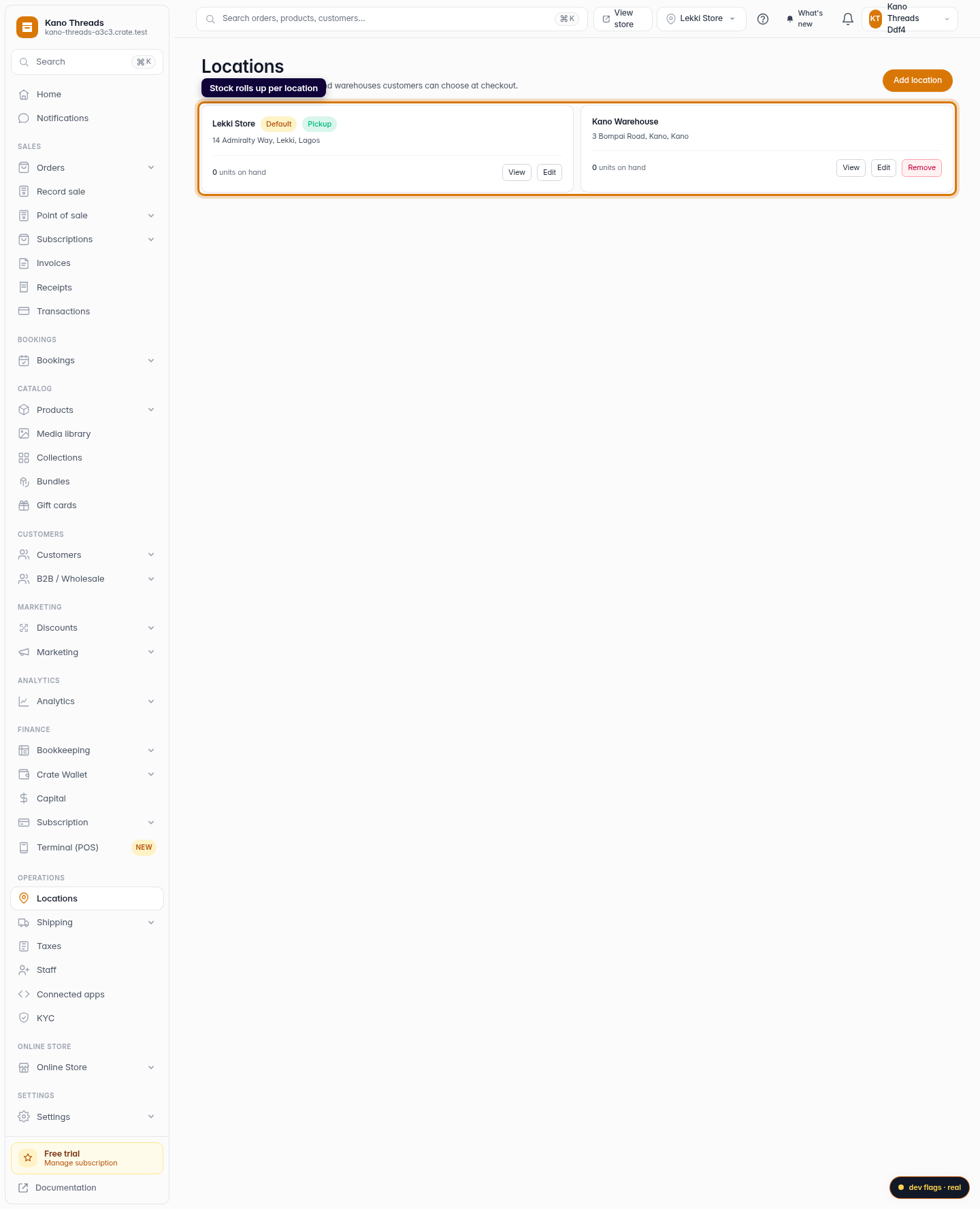
Tip: Stock and analytics roll up per location, so once your locations are set you can see exactly what's selling (and what's running low) at each one.
Switching your working location
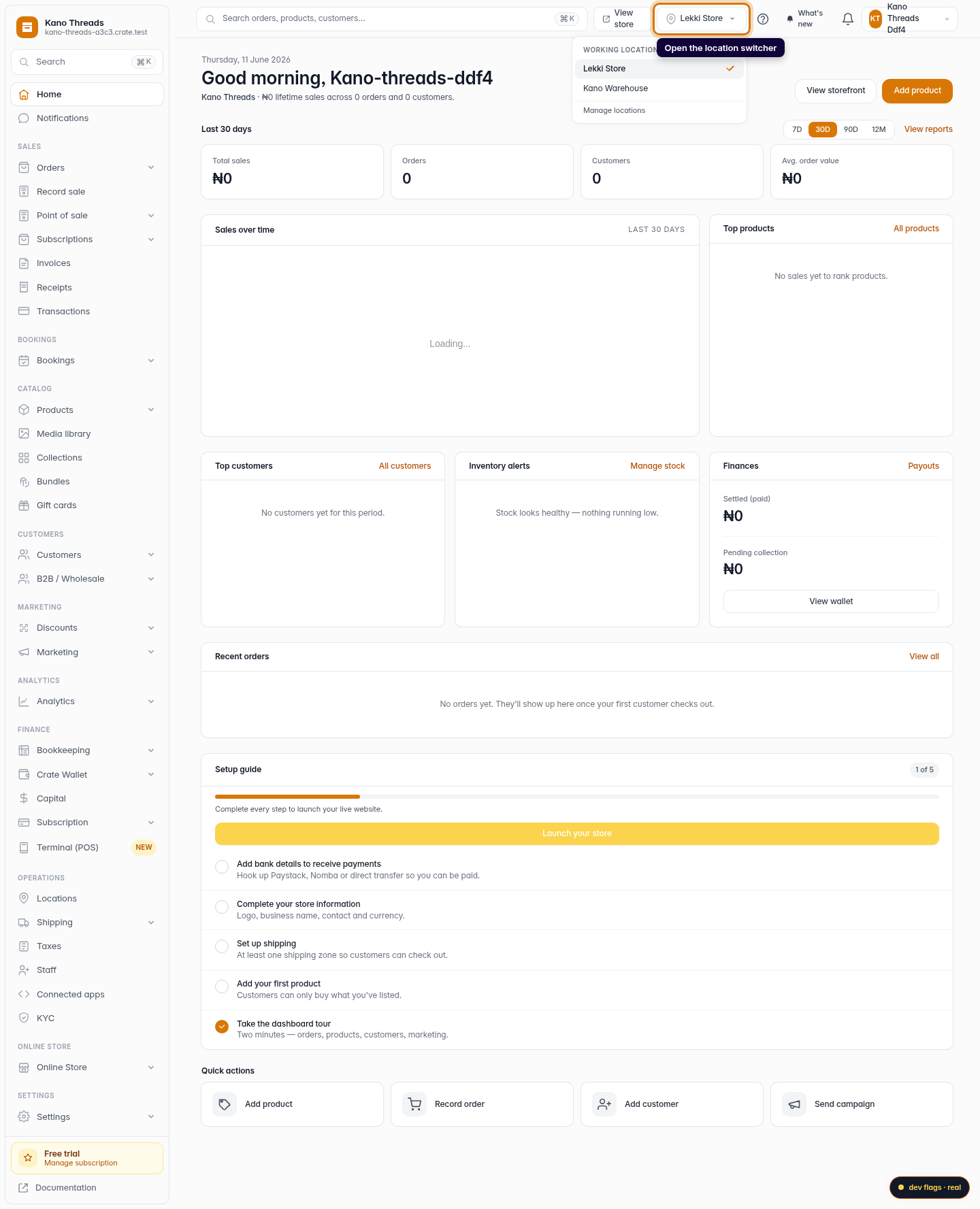
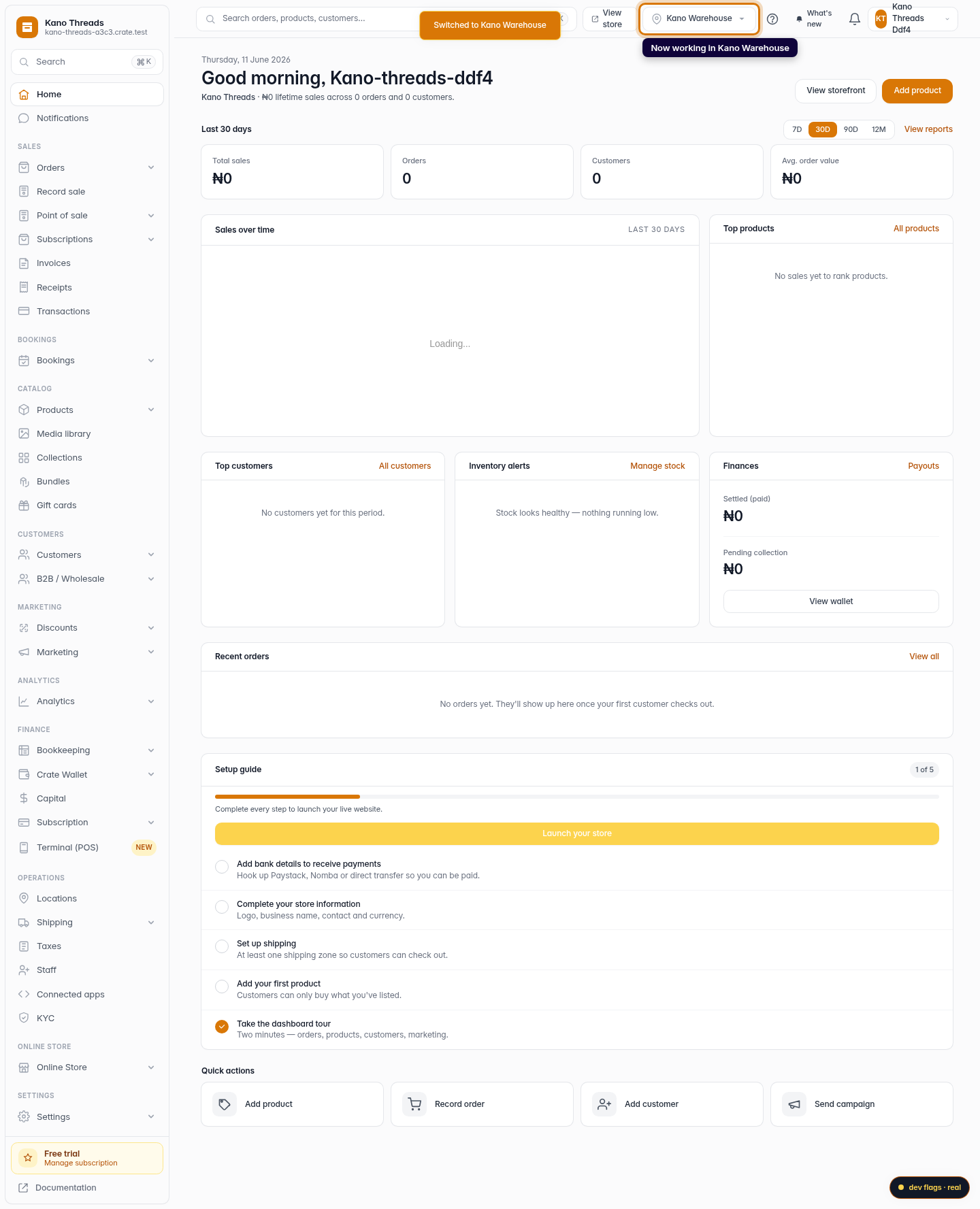
As soon as you have more than one location, a location switcher appears in the top bar. It shows your current working location; click it and choose another to switch. Everything location-aware (your inventory screens, stock adjustments, and point-of-sale) re-scopes to the location you pick, so you record against the right place every time.
Your choice sticks for the rest of your session and is always re-checked against your own store, so a stale selection quietly falls back to your default location rather than pointing somewhere wrong.
-
1
Open Locations
From the dashboard, open Locations. Each card is one physical place (a branch, a warehouse, or a pickup point) with its address, stock on hand, and badges for Default and Pickup.
Web 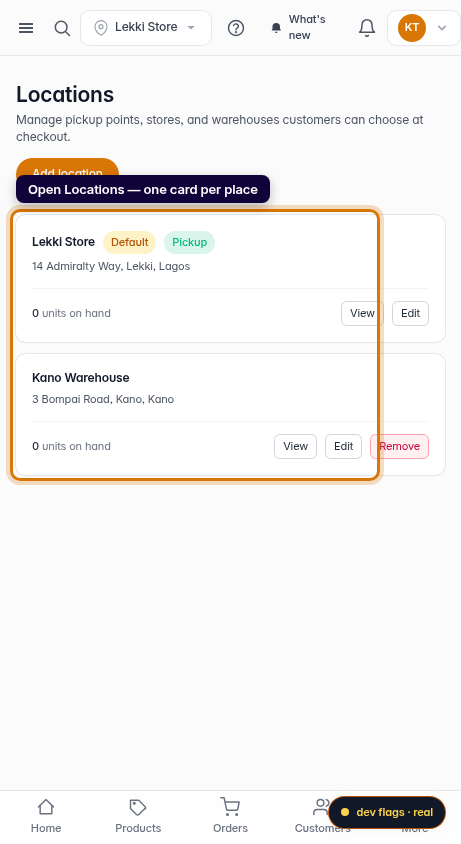
Mobile -
2
See stock per location
Each card shows the units on hand at that location. Stock and analytics roll up per location, so you always know what's where.
Web -
3
Open the location switcher
Once you have more than one location, a location switcher appears in the top bar. Click it to see your working location and the others you can jump to.
Web -
4
Switch your working location
Pick a location from the switcher. Inventory views, stock writes and in-person sales now scope to it, so every action you take lands in the right place; the top bar updates to show your new working location.
Web